
How to add YouTube URLs to your Video Library
Welcome to this Brokerkit tutorial. We'll walk you through our new Hosted Video Links feature
Go to getbrokerkit.com
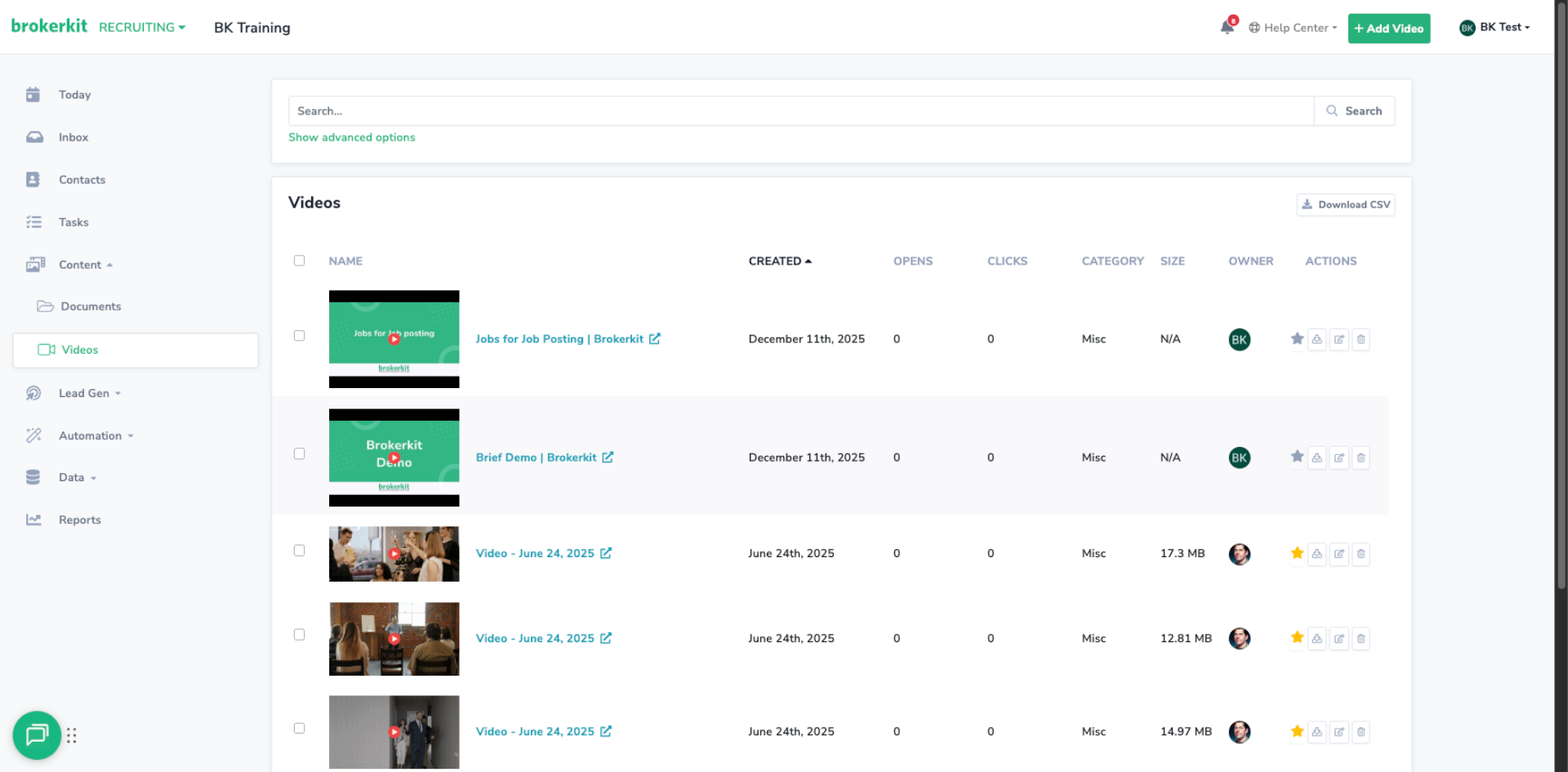
1. Intro
A capability that allows you to add YouTube videos to your video library without uploading the video files directly. Which can be used in your email and SMS communications.
2. Before you get started
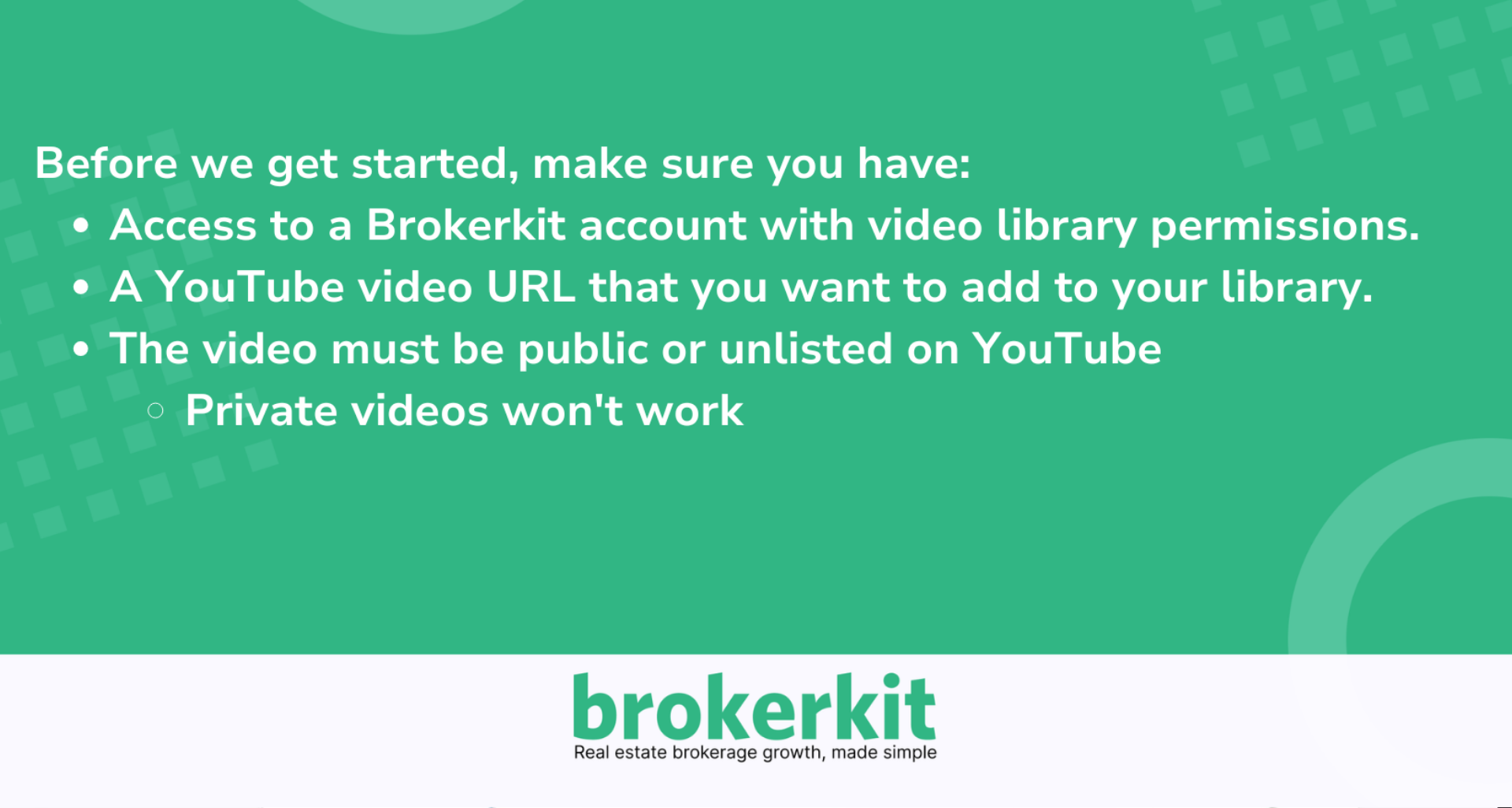
Before we get started, make sure you have: Access to a Brokerkit account with video library permissions. A YouTube video URL that you want to add to your library. The video must be public or unlisted on YouTube (private videos won't work)
3. Navigate to Video Page
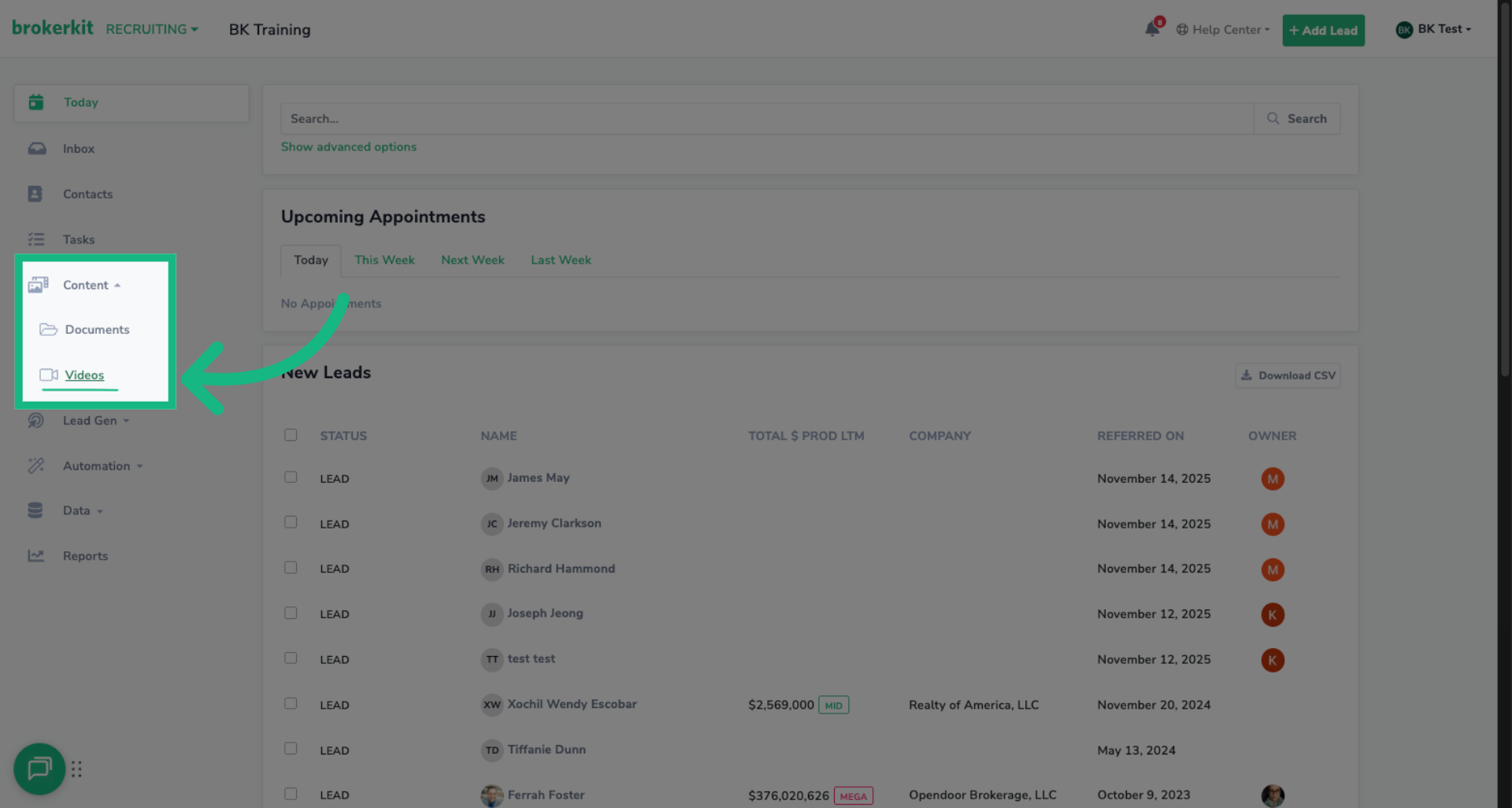
Navigate to the left side bar under Content and Click Videos to open the video library page
4. Add New Video
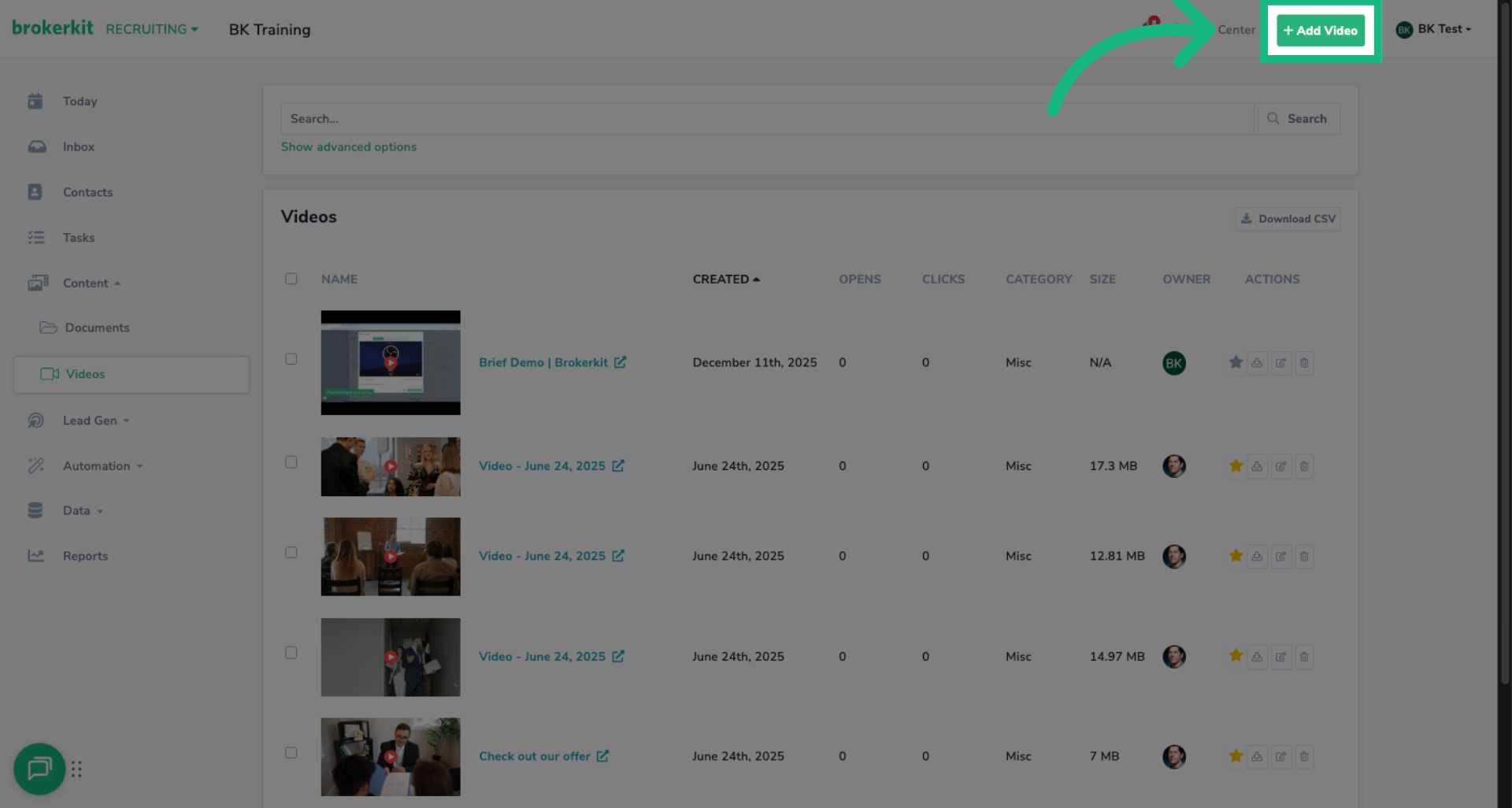
On the Videos page, in the top right cornerclick the button to add a new video. This will open the video modal where you can choose how you want to add your video.
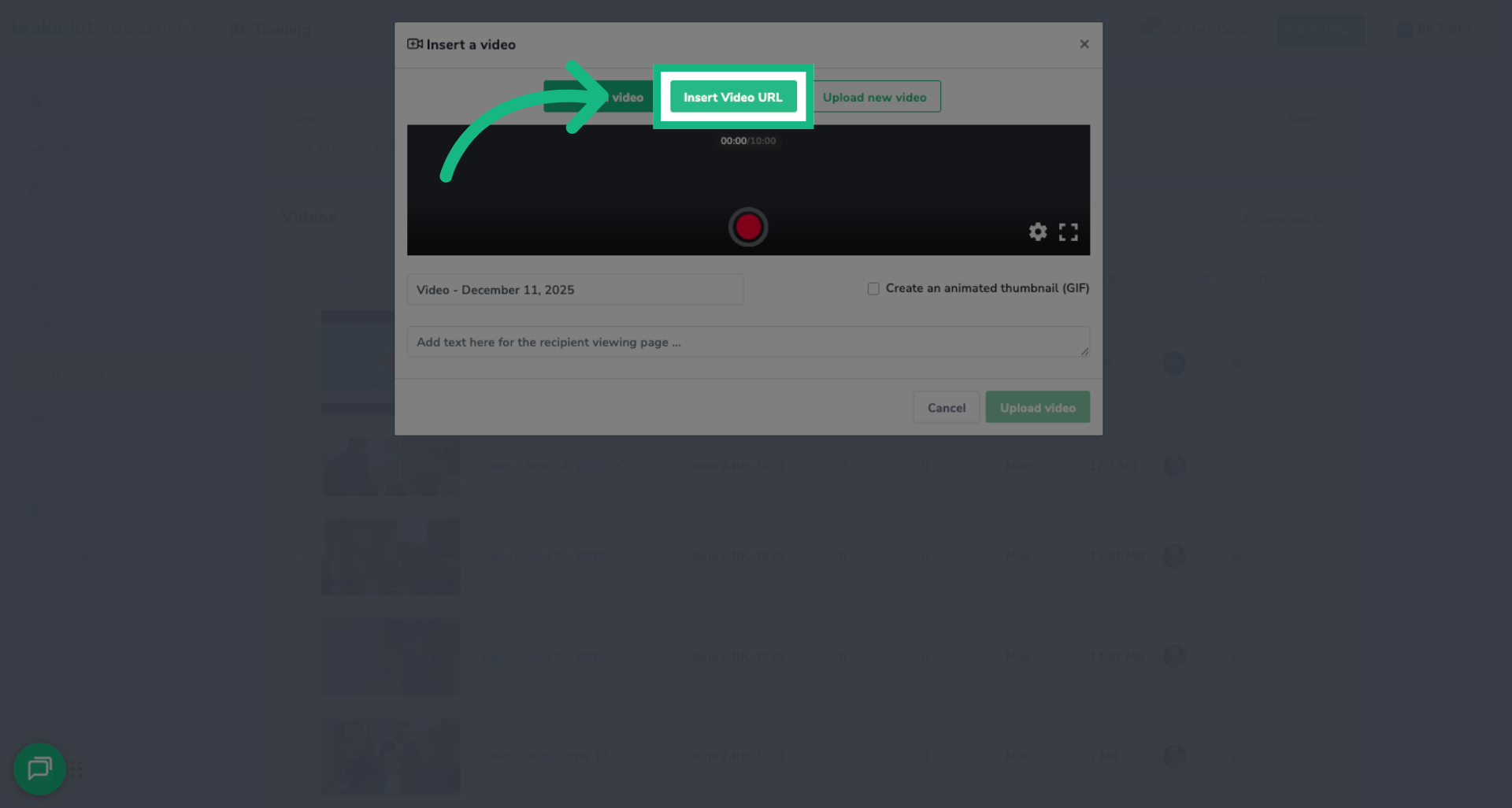
5. Choose Insert Video URL
In the video modal, you'll see several options. Click on 'Insert Video URL' to add a hosted video from YouTube.
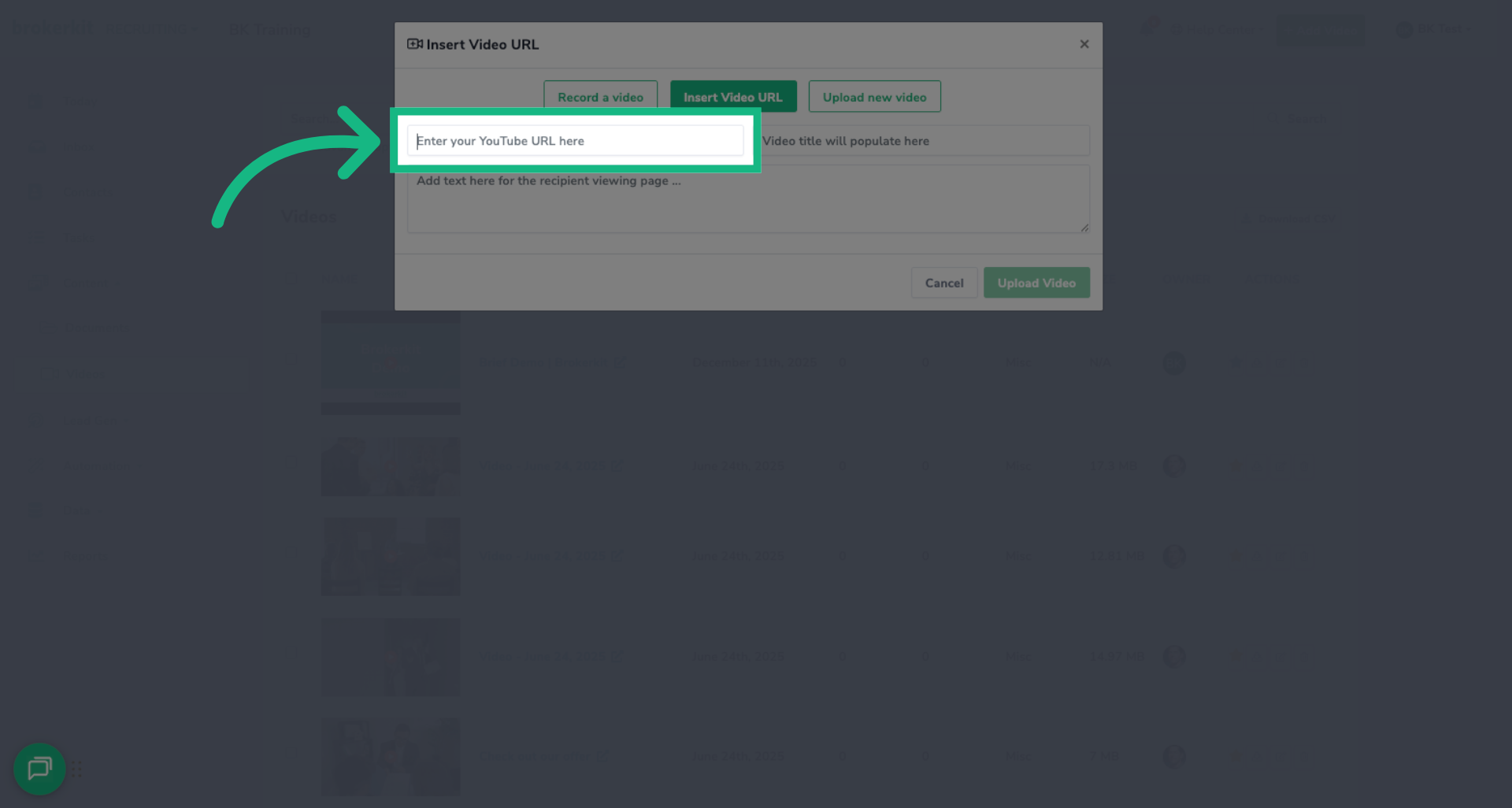
6. Enter the YouTube URL
Now paste your YouTube video URL into the URL field.
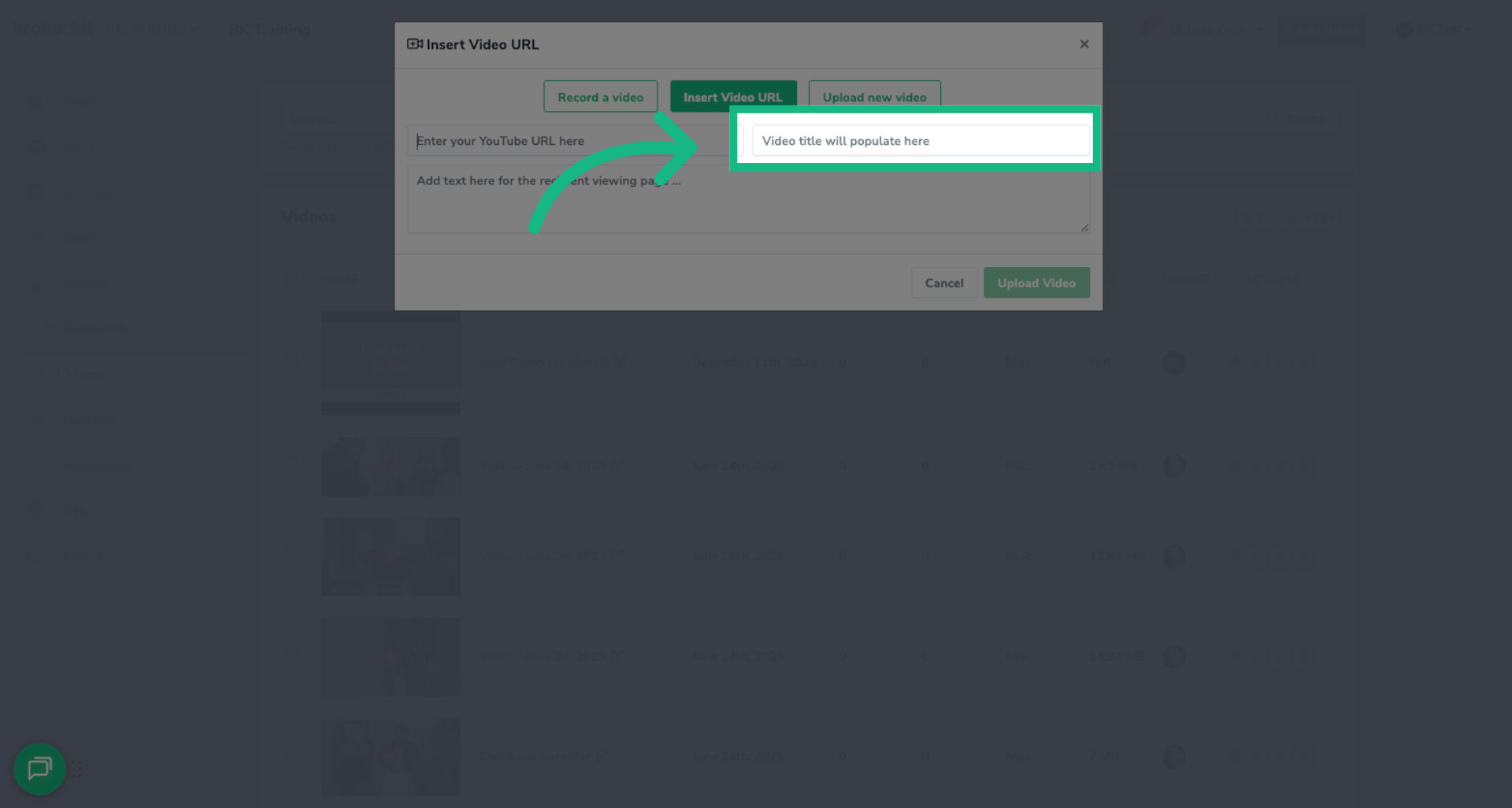
7. Video Title
Leave this section blank if you wish to use the YouTube video title, if not type in a different title
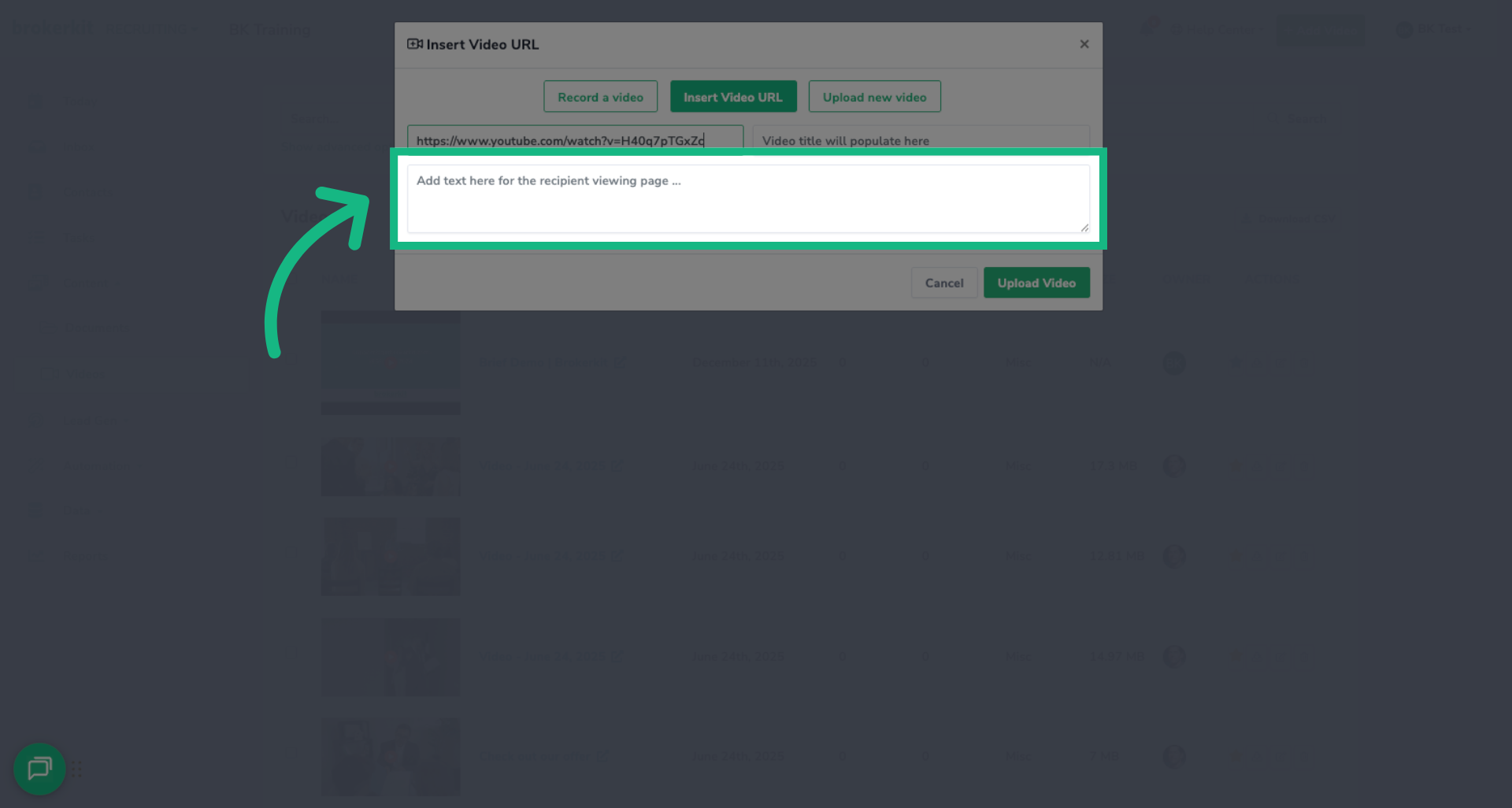
8. Recipient Viewing Message
Enter your message text to accompany the video for recipients.
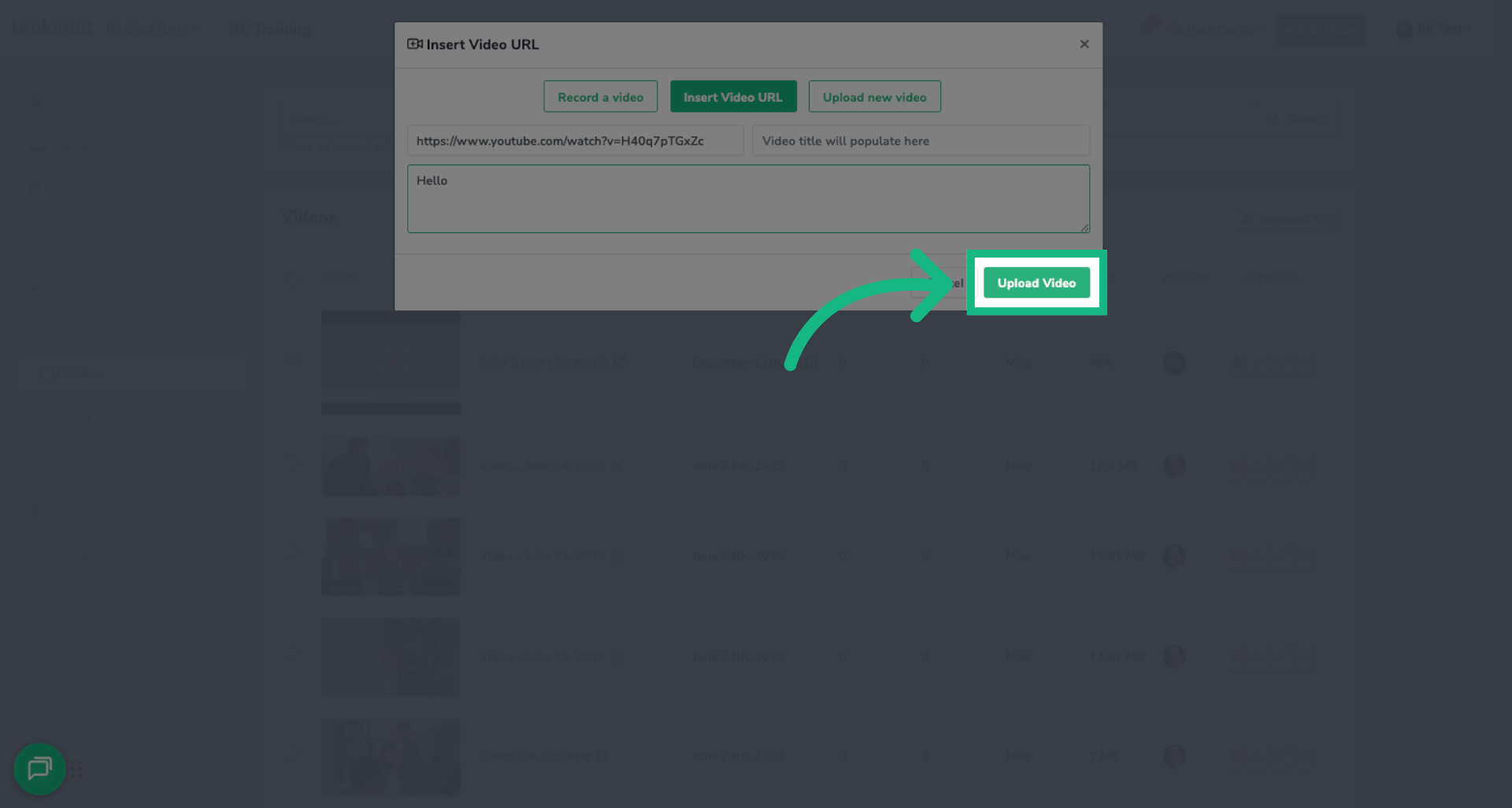
9. Initiate Video Upload
Click Upload Video to begin uploading process
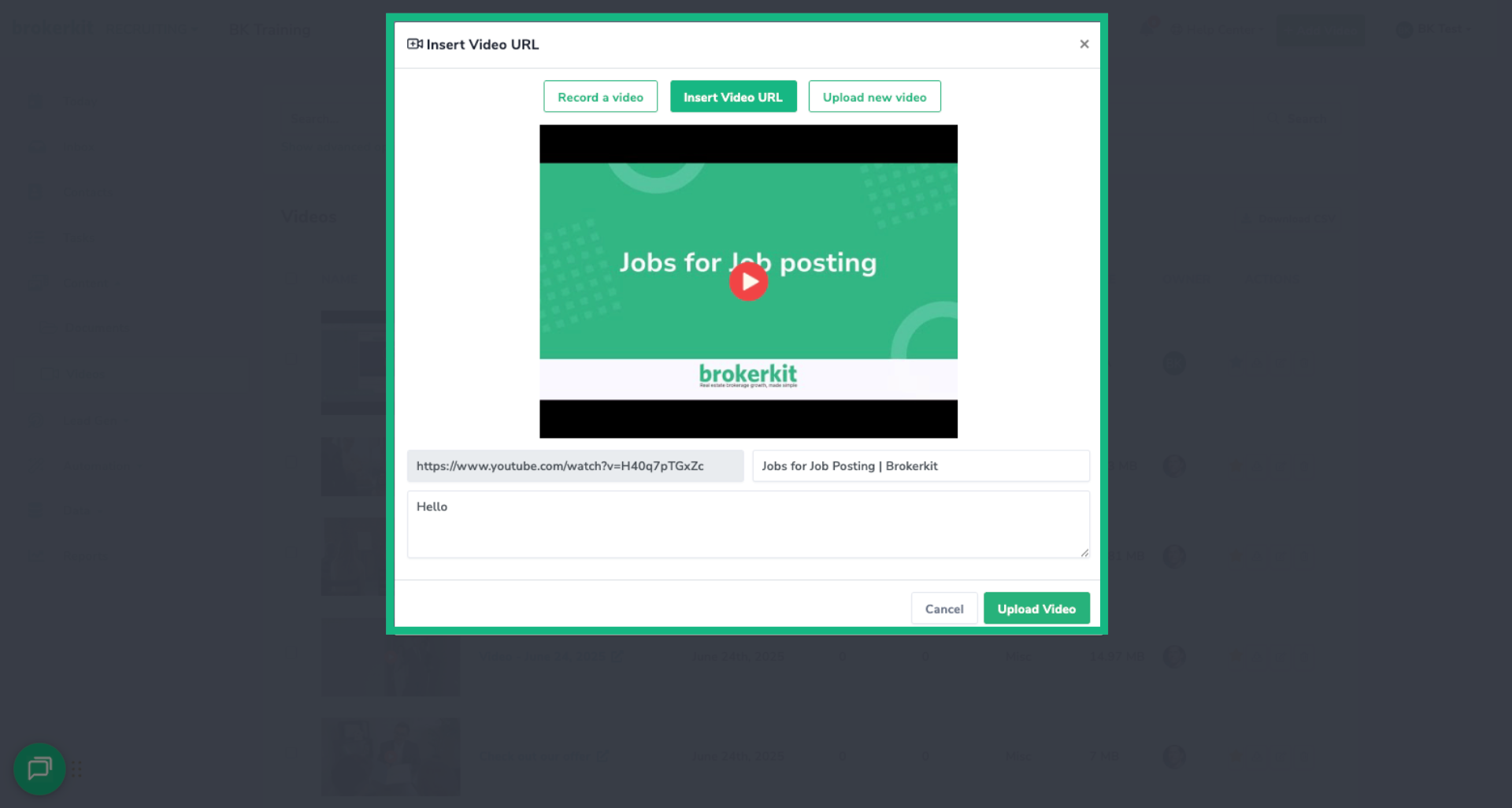
10. View Video Processed
Once the video is done processing. You will see you the video title automatically fetched from YouTube, or customize the title if you'd like something different from the YouTube title and a generated thumbnail preview will also be created
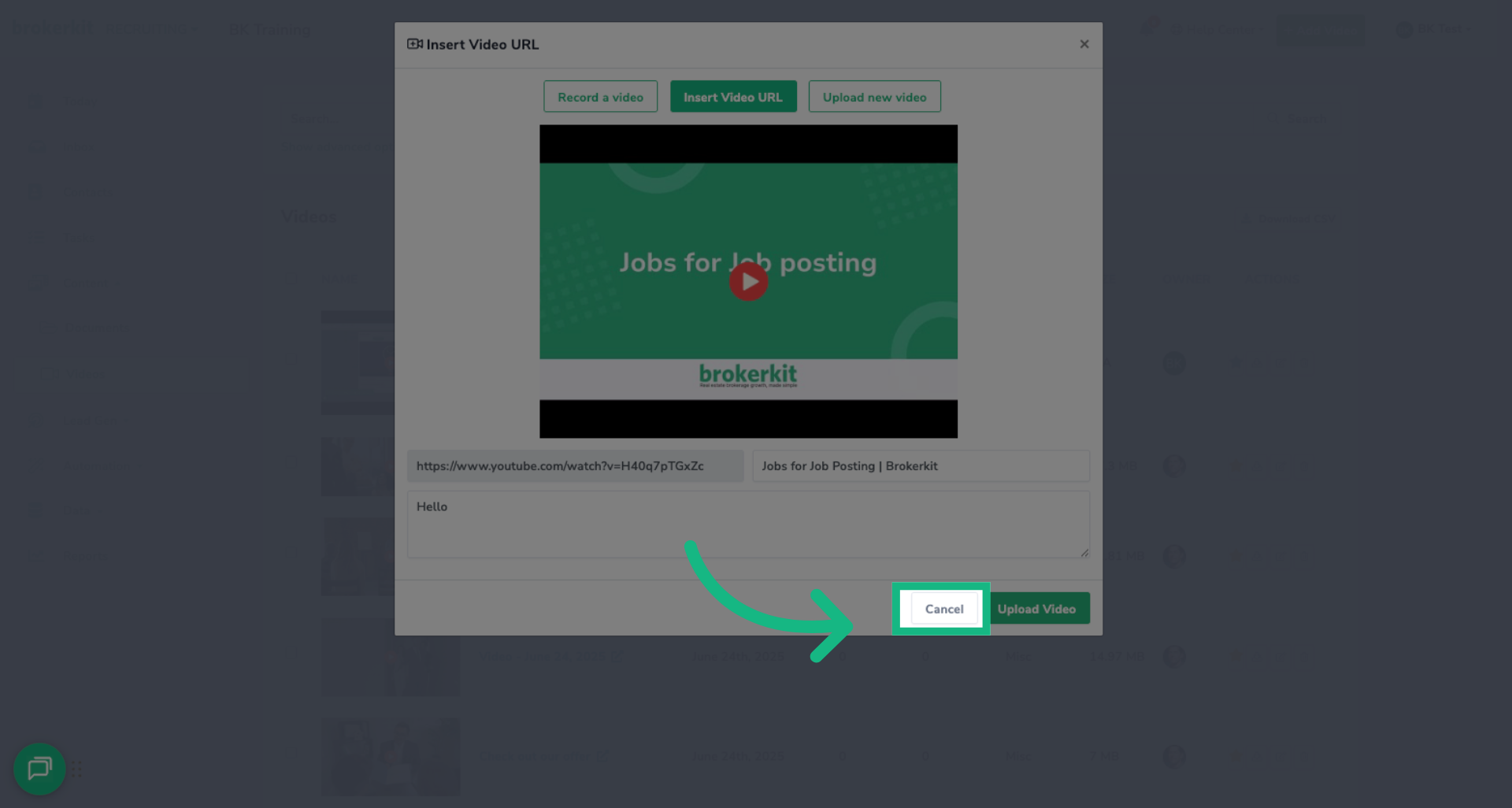
11. Cancel Video Upload
By any chance the video processed was the wrong version or you wish to not add this video, you can click cancel and the video will not be added to your video library
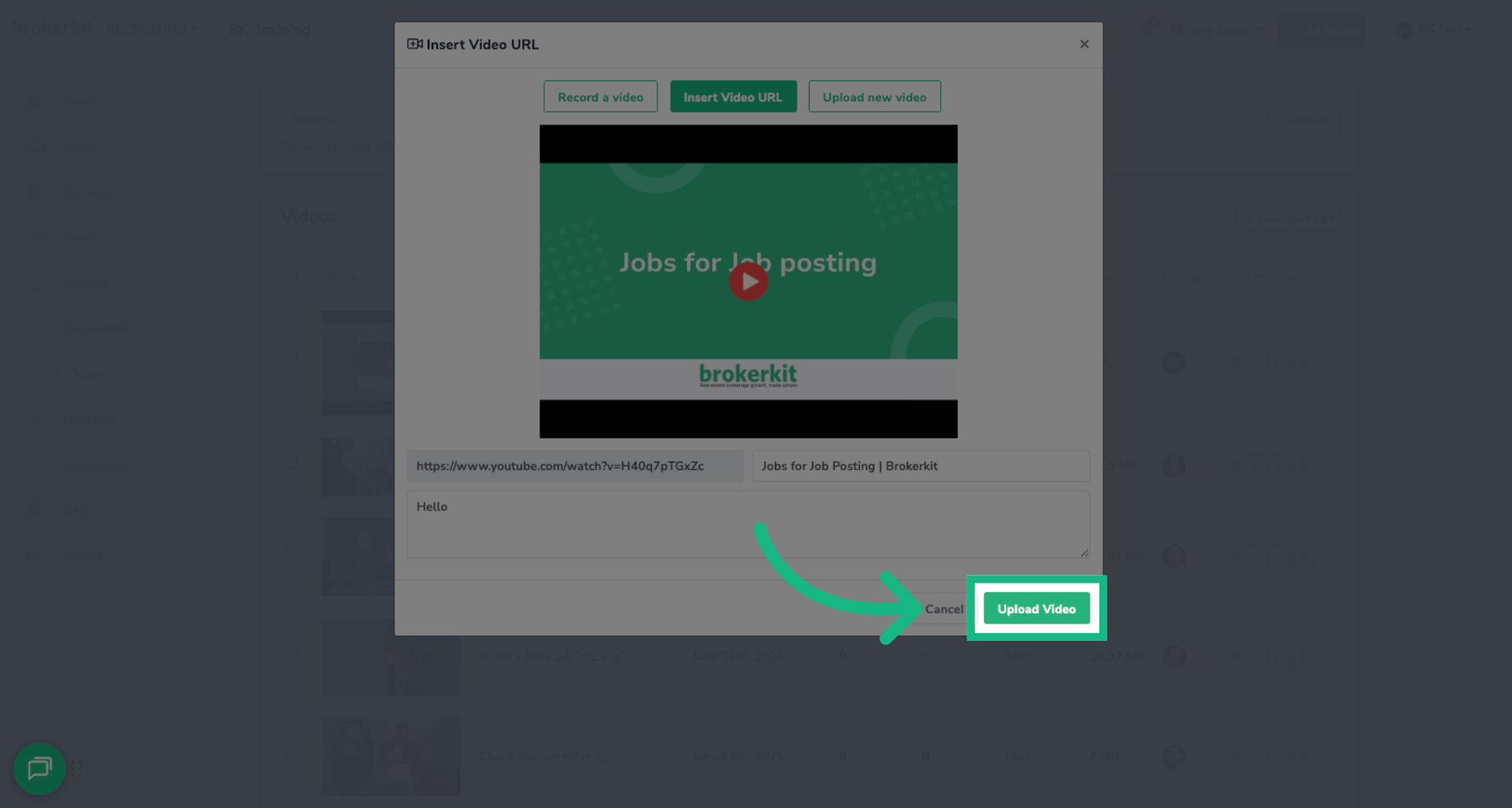
12. Confirm Video Upload
when your ready Click Upload Video again to confirm and complete the upload process.
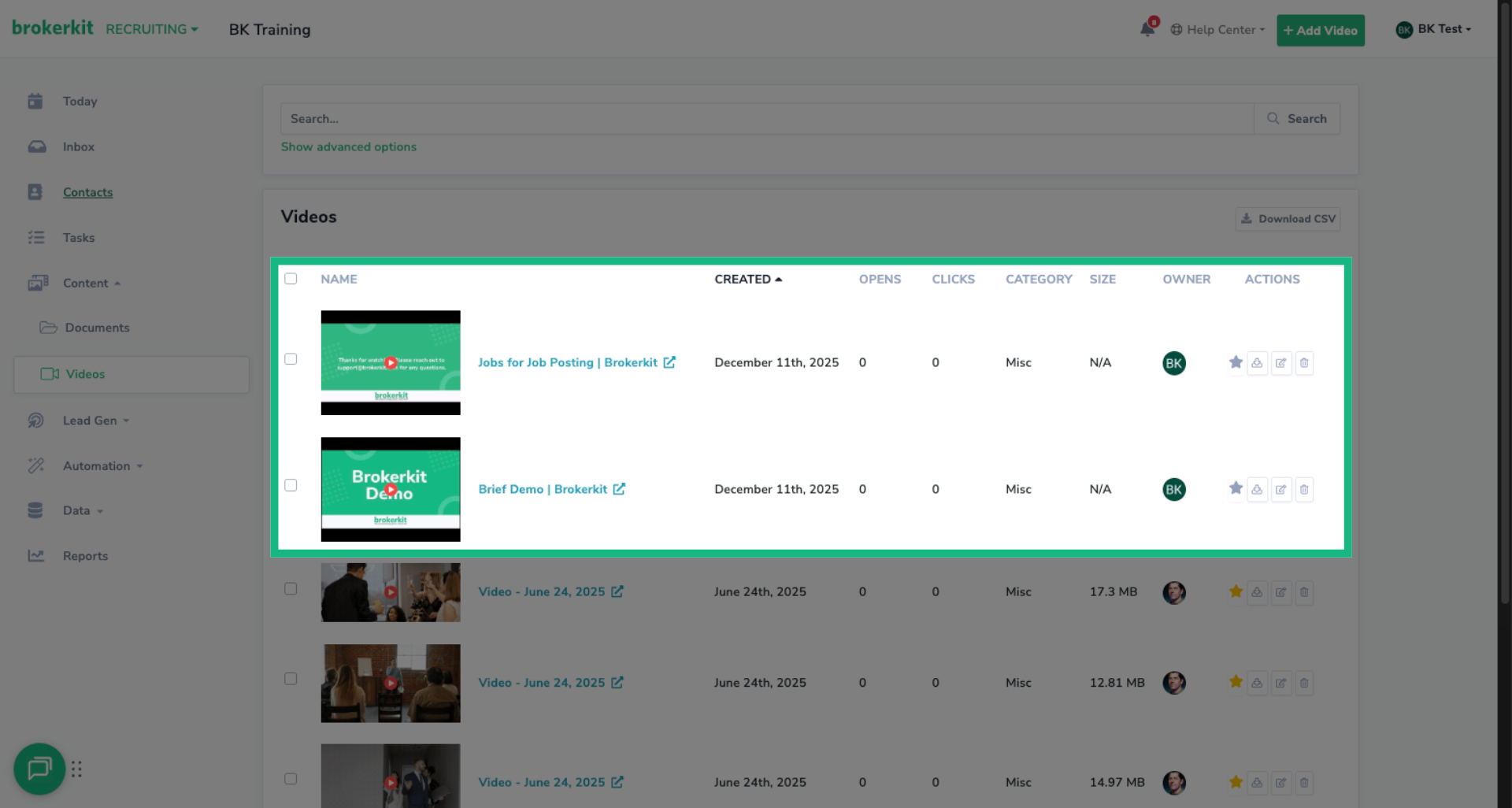
13. Video Library
Your hosted YouTube video is now in your library and ready to use. When you insert this video into an email or text message, recipients will see the YouTube video when they click to view
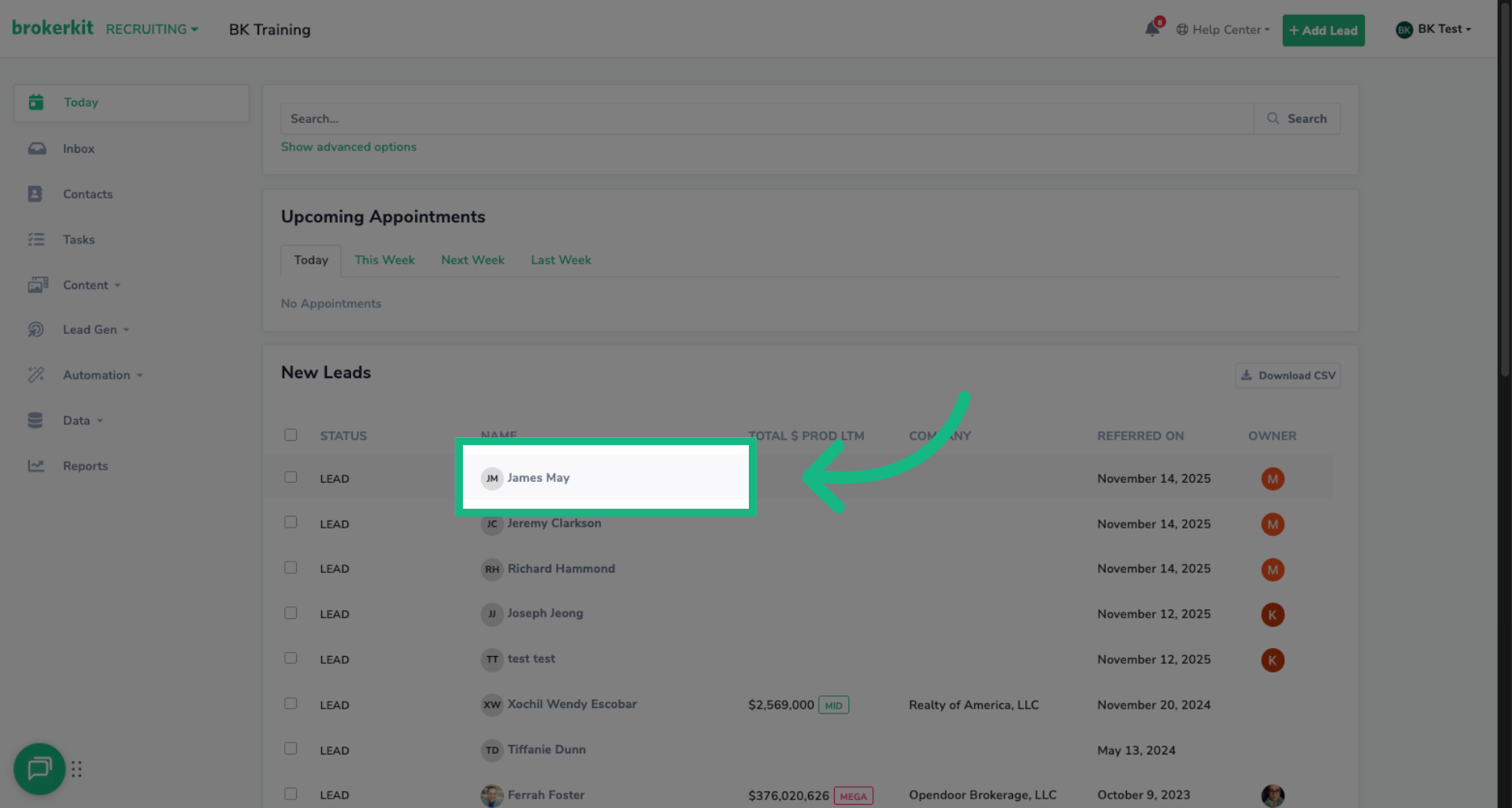
14. Send to contacts
We learned how to upload a YouTube URL from the video page. Lets go through utilizing the video through any text editor with the video icon. Choose any contact for this example
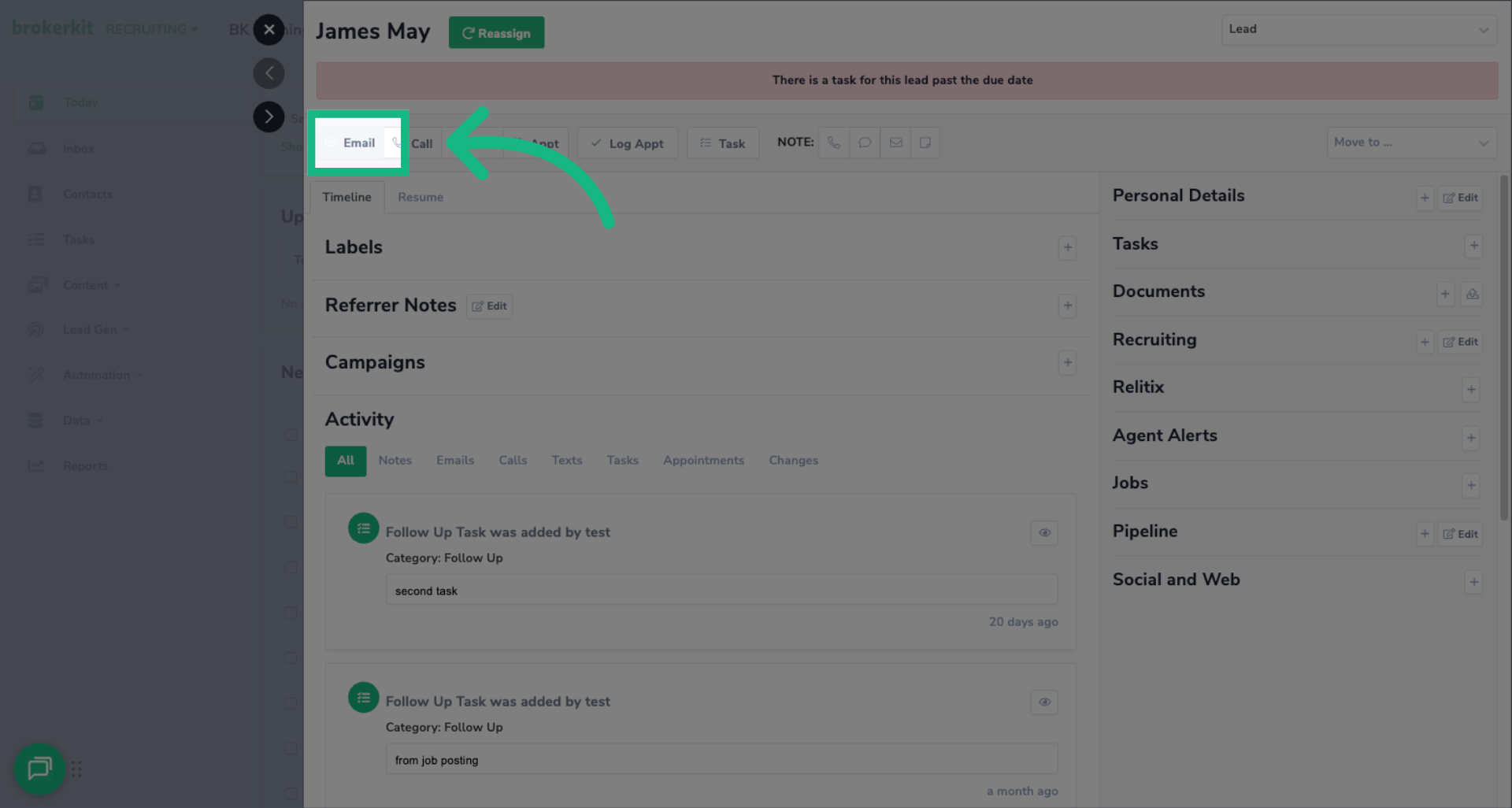
15. Select which form of contact
Choose any form of contact option but for this tutorial lets Click the Email button
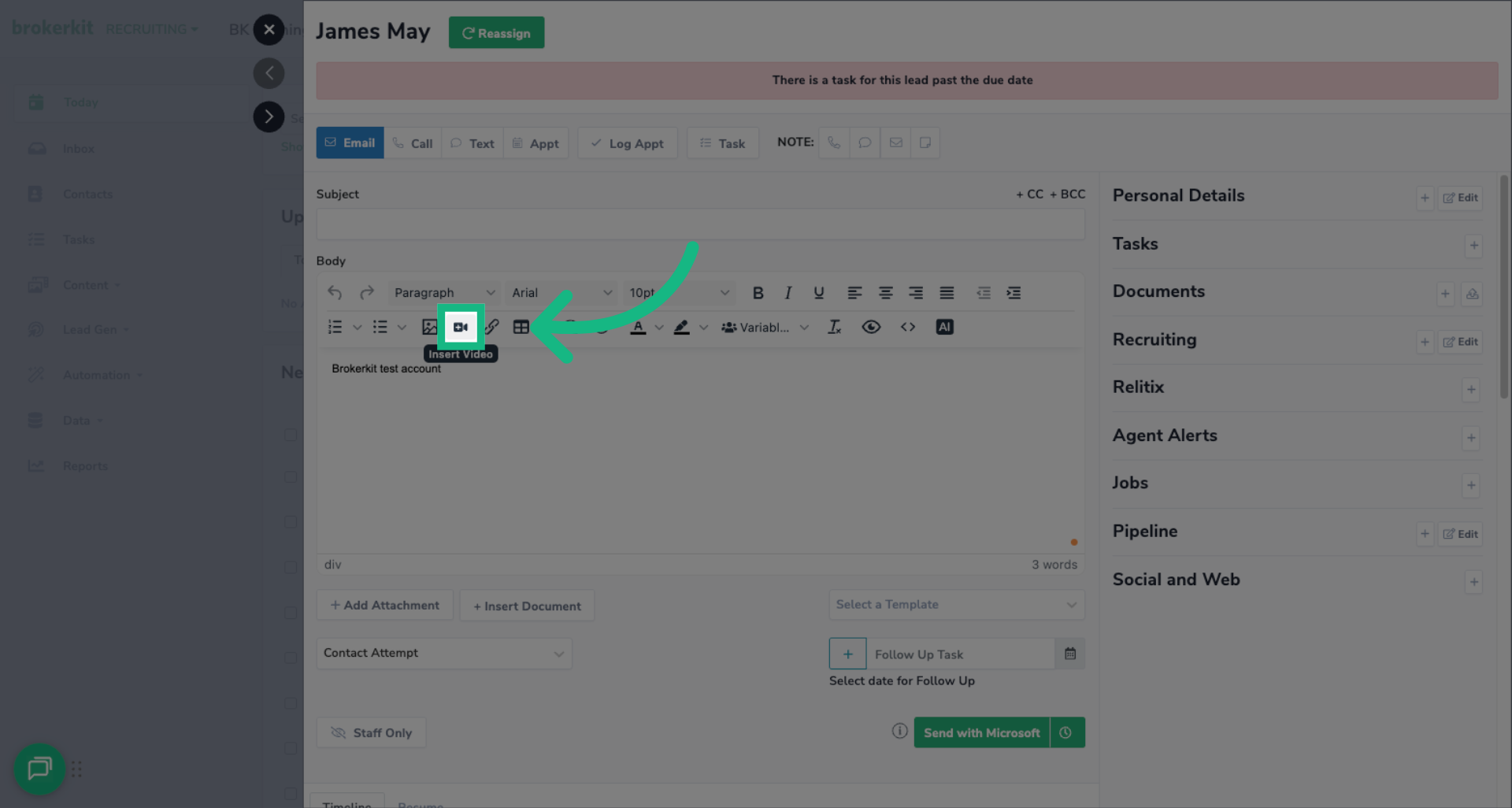
16. Click Video icon
Click here to open the video window
17. Insert Video URL in text editors
You can insert YouTube URLs from any text editor. That being Email, Text, Campaigns, Bulk emails, etc. Follow the same instructions from the beginning of this video
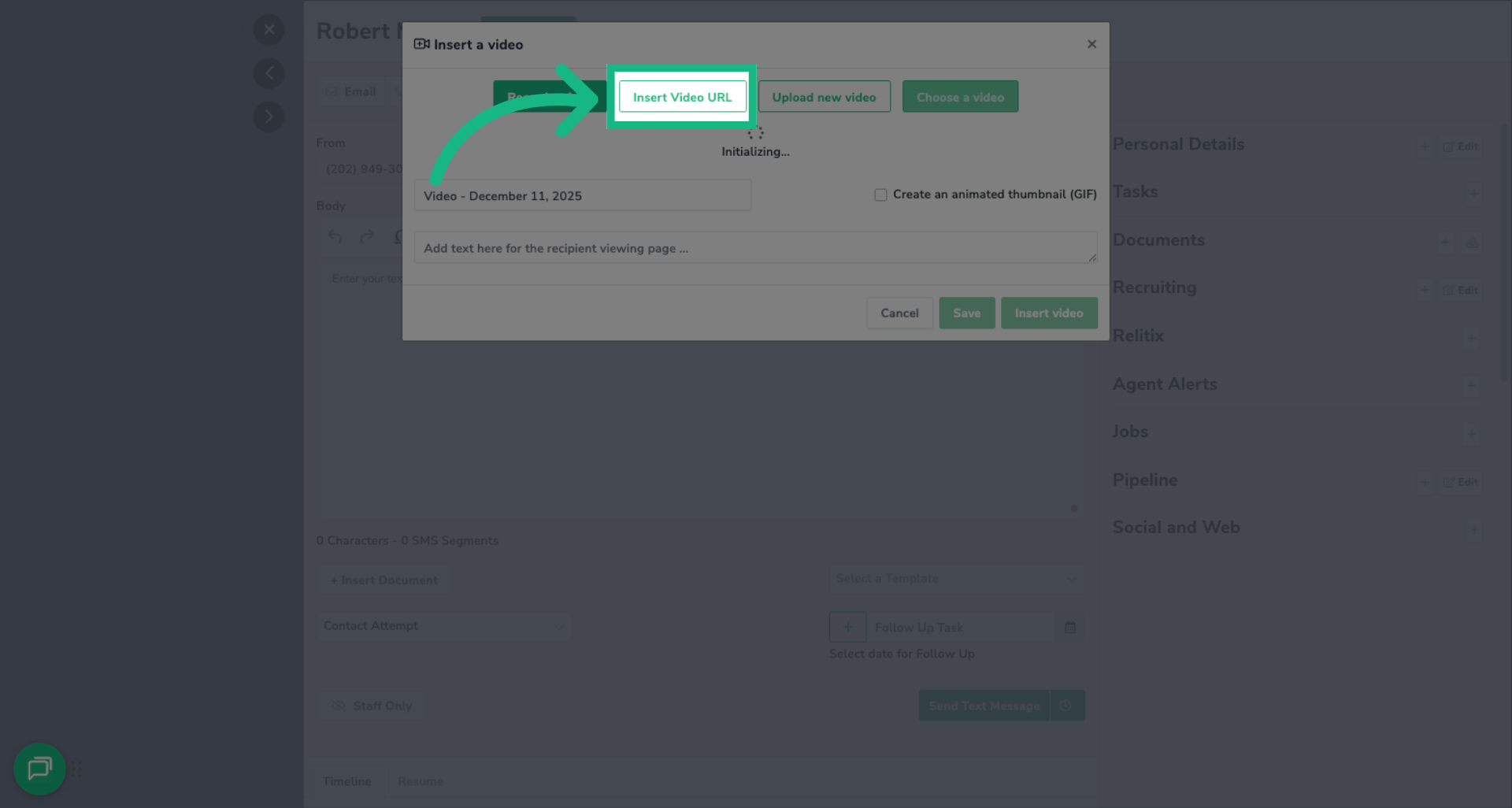
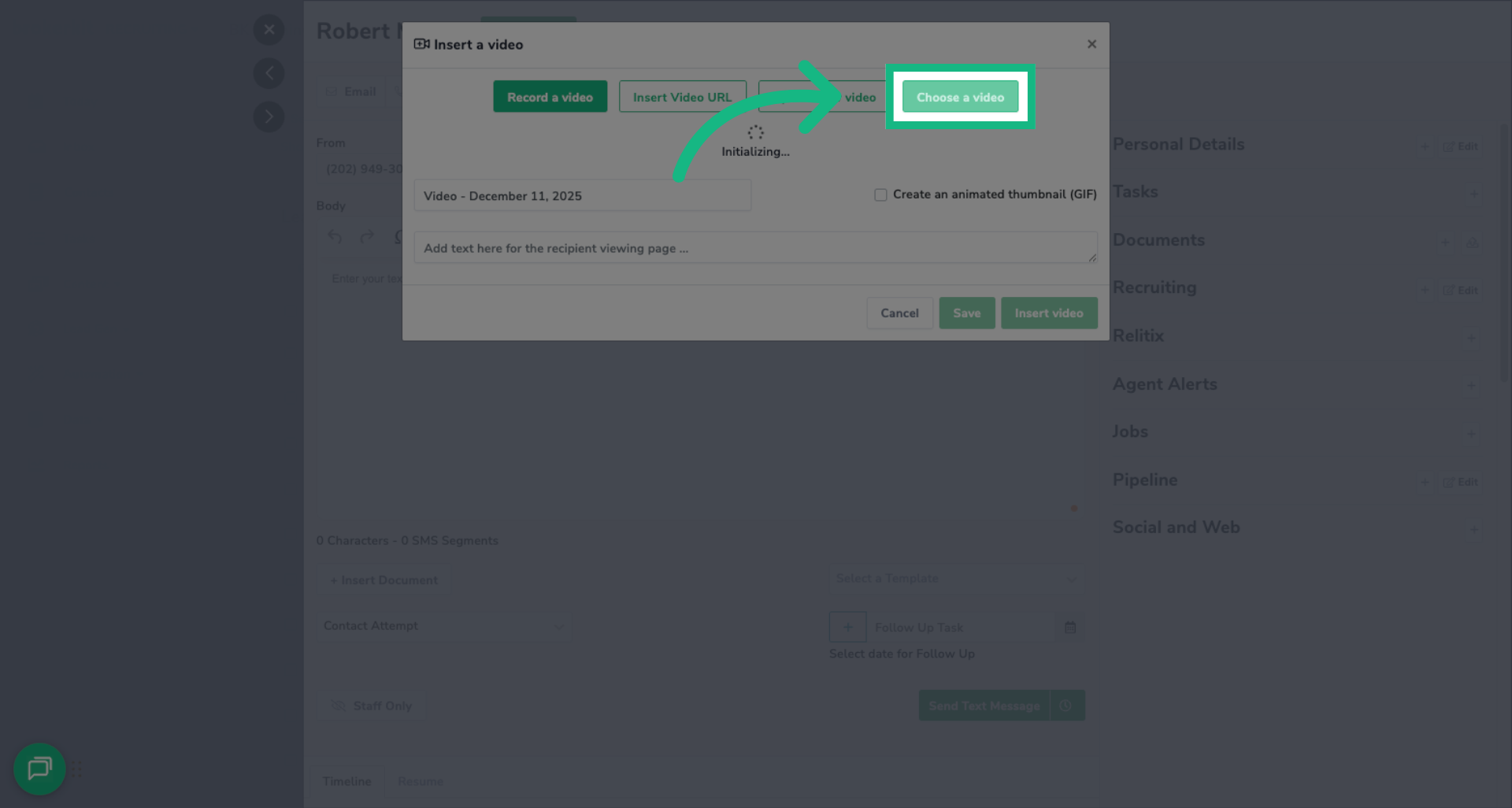
18. Choose Video
Click Choose a video to insert in an existing YouTube video in your library
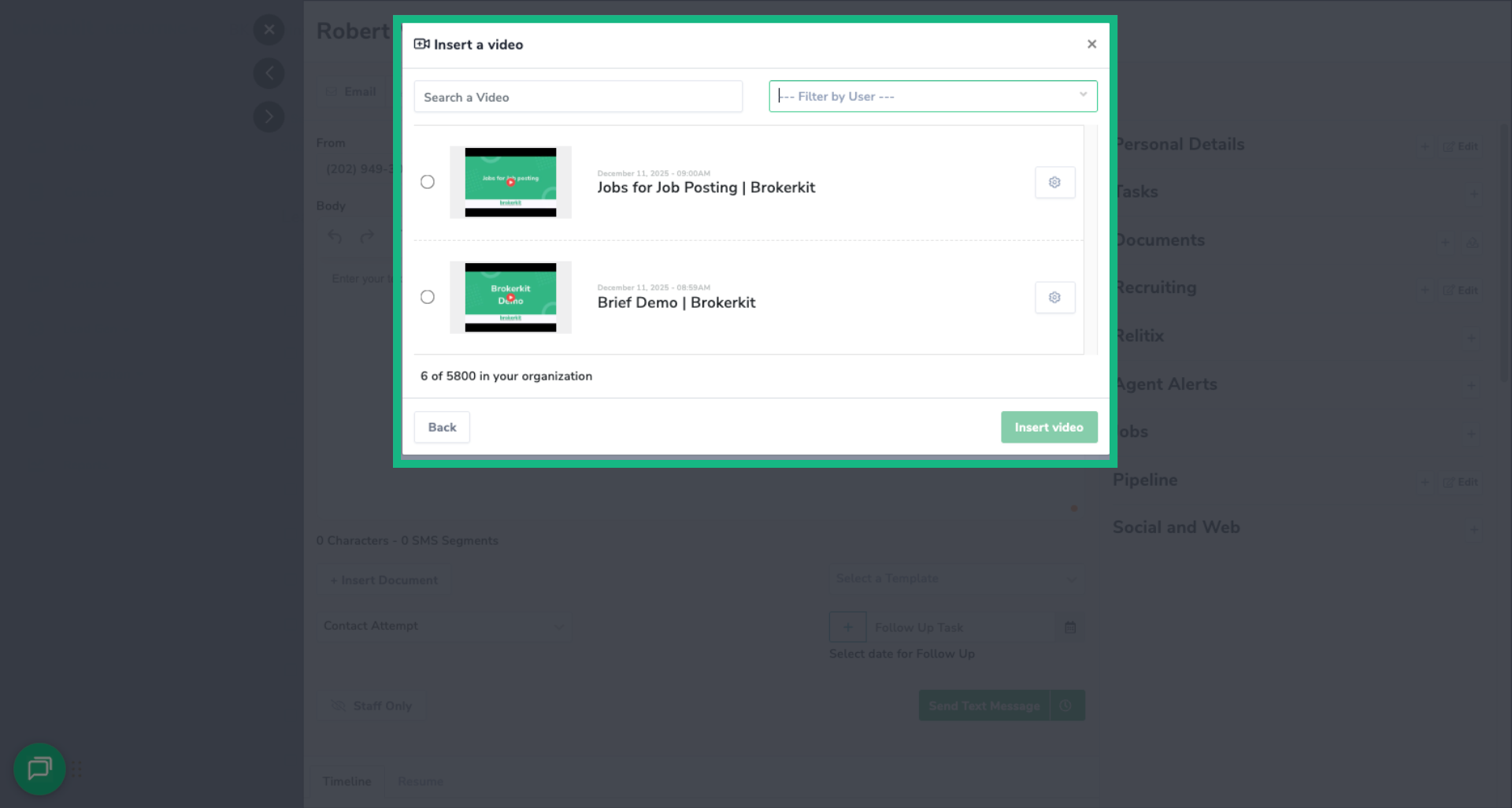
19. Choose Video List
The modal will list all your videos, whether they were uploaded or YouTube URLs
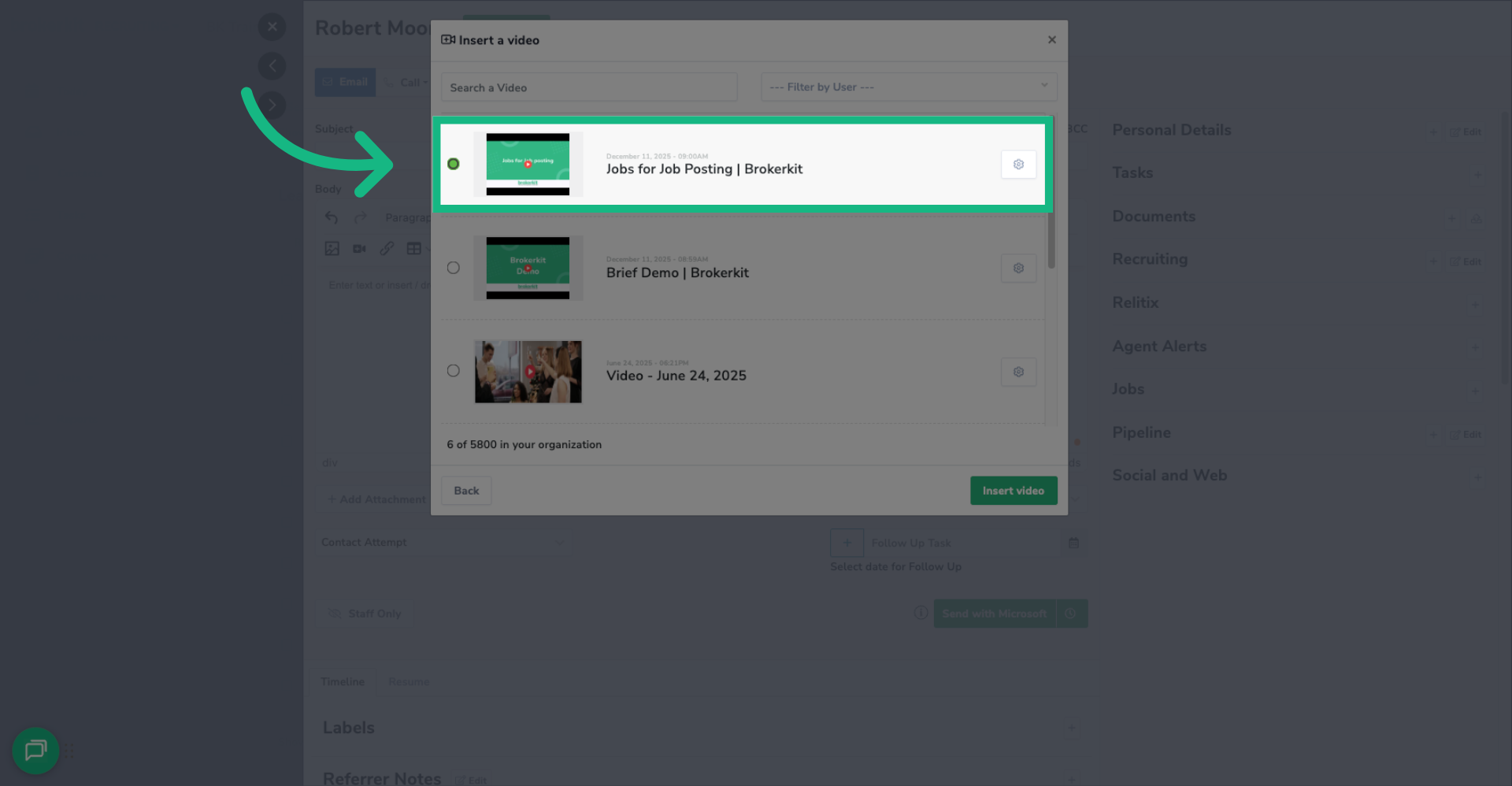
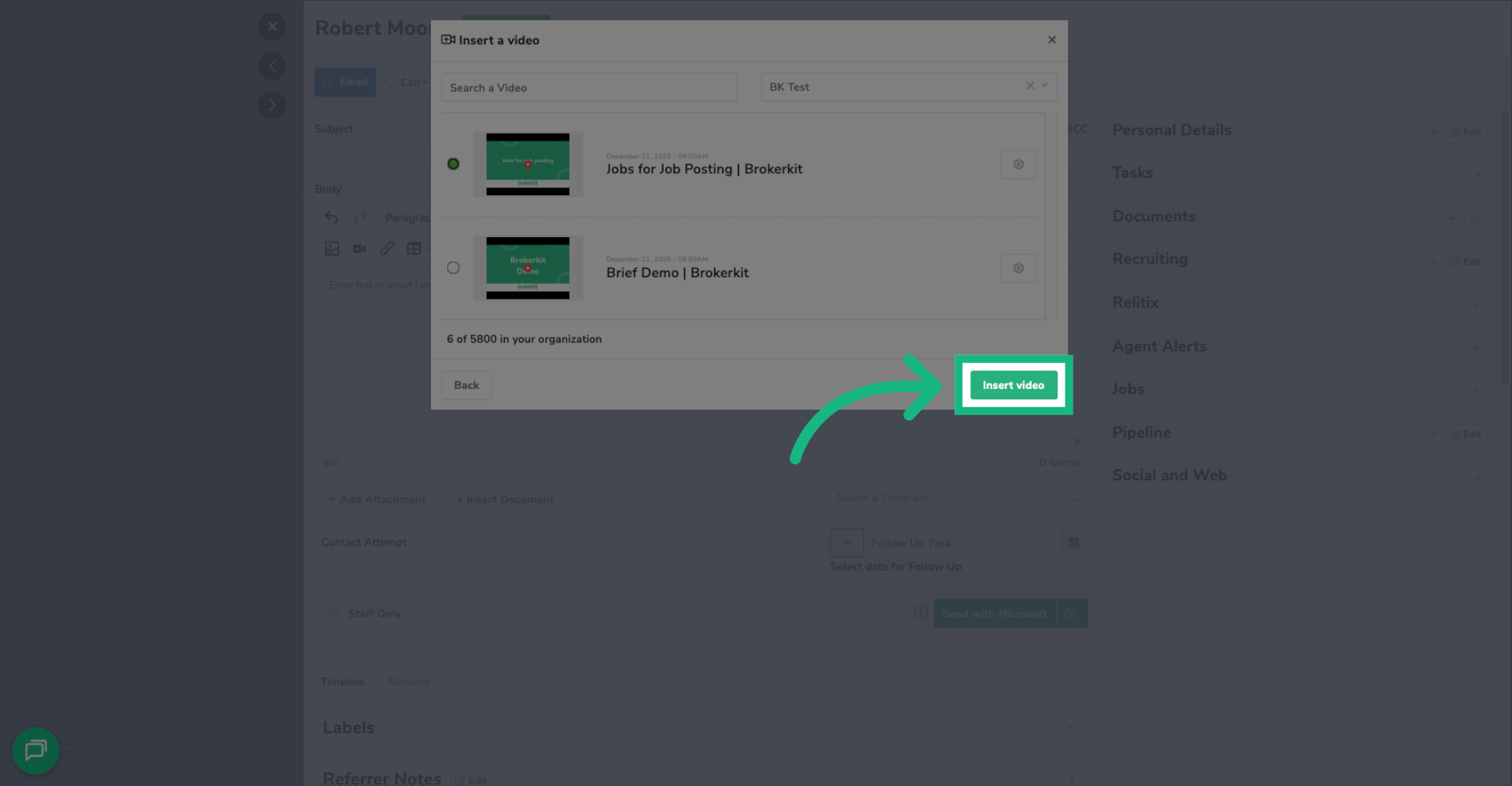
20. Choose the Video to Insert
Click the video you wish to add to the email, text. campaign, etc
21. Insert Selected Video
Click Insert video to add the chosen video to the text editor
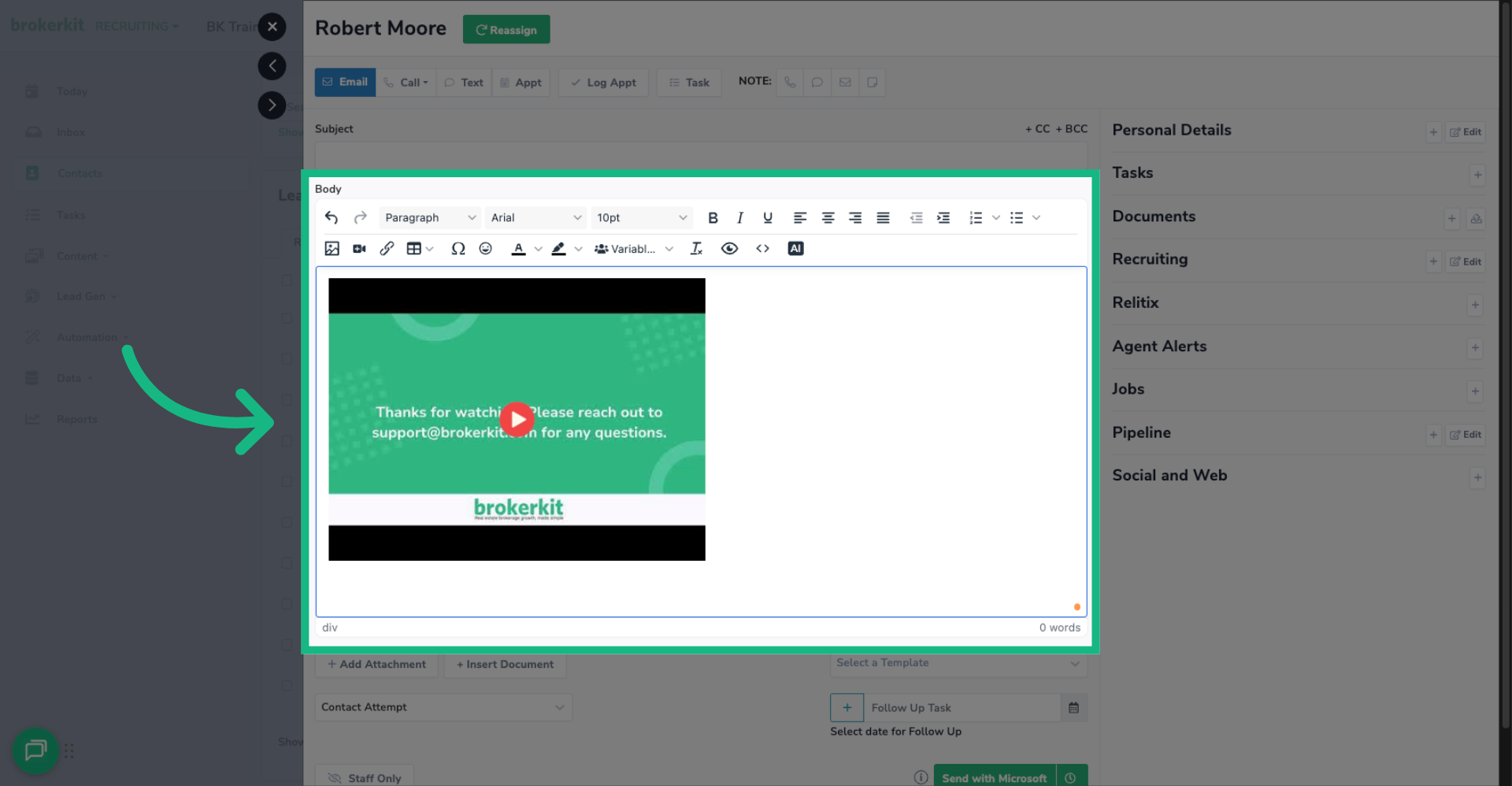
22. Video in Text Editor
Your video is now ready to be shared. Include a message in your email, text, or campaign wherever you've inserted the video, and send it when you're ready to communicate with your contacts.
You've now learned how to add hosted YouTube videos to your Brokerkit video library. This feature enables you to utilize existing YouTube content without the need to download and re-upload it to Brokerkit, ensuring a seamless viewing experience for your recipients. If you have any questions, please don't hesitate to contact our support team. Thank you for watching!