
This tutorial shows you how to use Brokerkits new Jobs feature to post a job on Indeed and manage applicants directly within Brokerkit.
Go to employers.indeed.com
1. Navigate to Indeed employer account
To start, go to your Indeed employer account.
Learn more
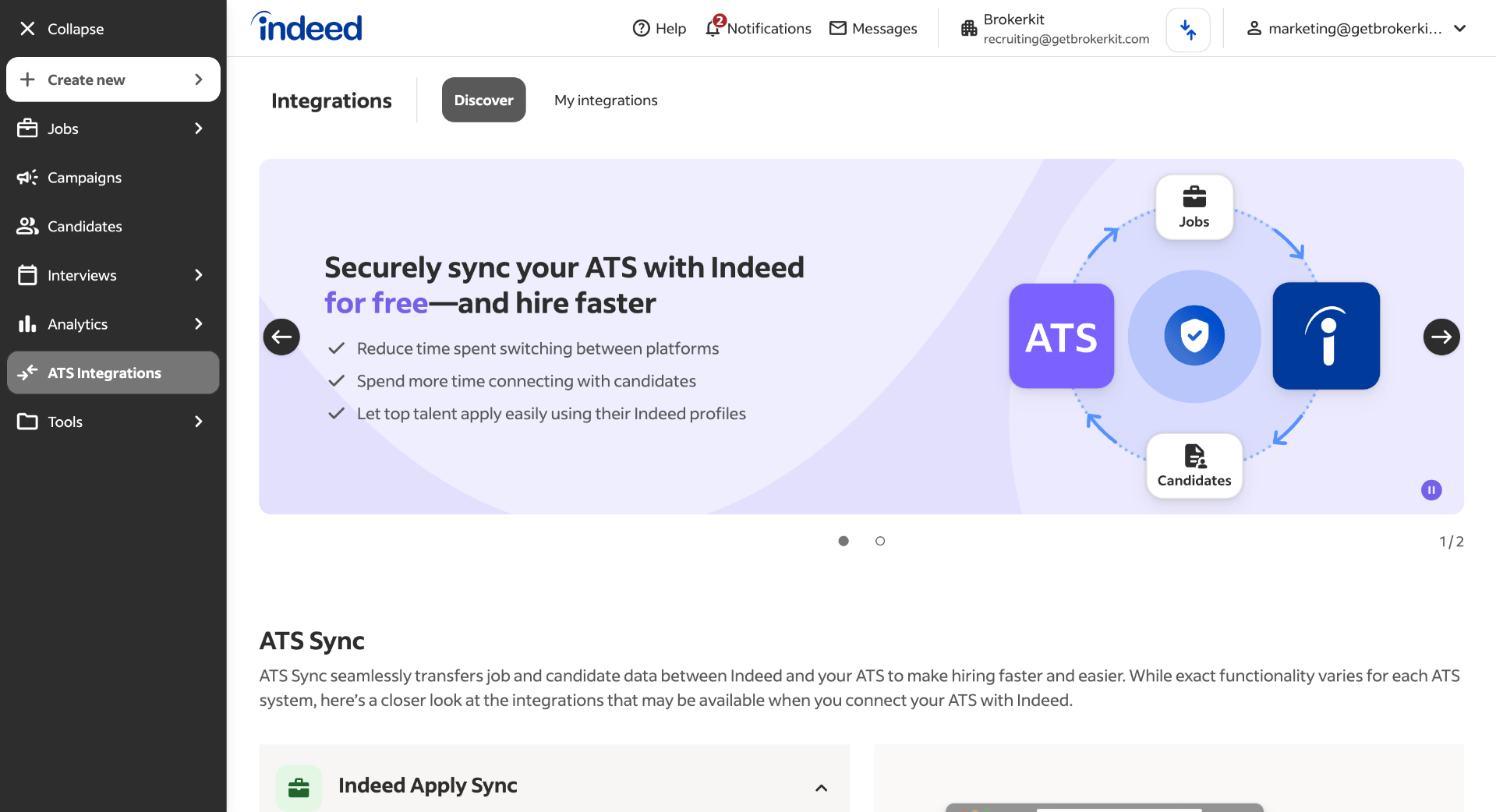
2. Open Help Section
To manage candidates in Brokerkit, you need to ask Indeed to enable this feature on your account. To do this, go to the help option at the top of the screen.
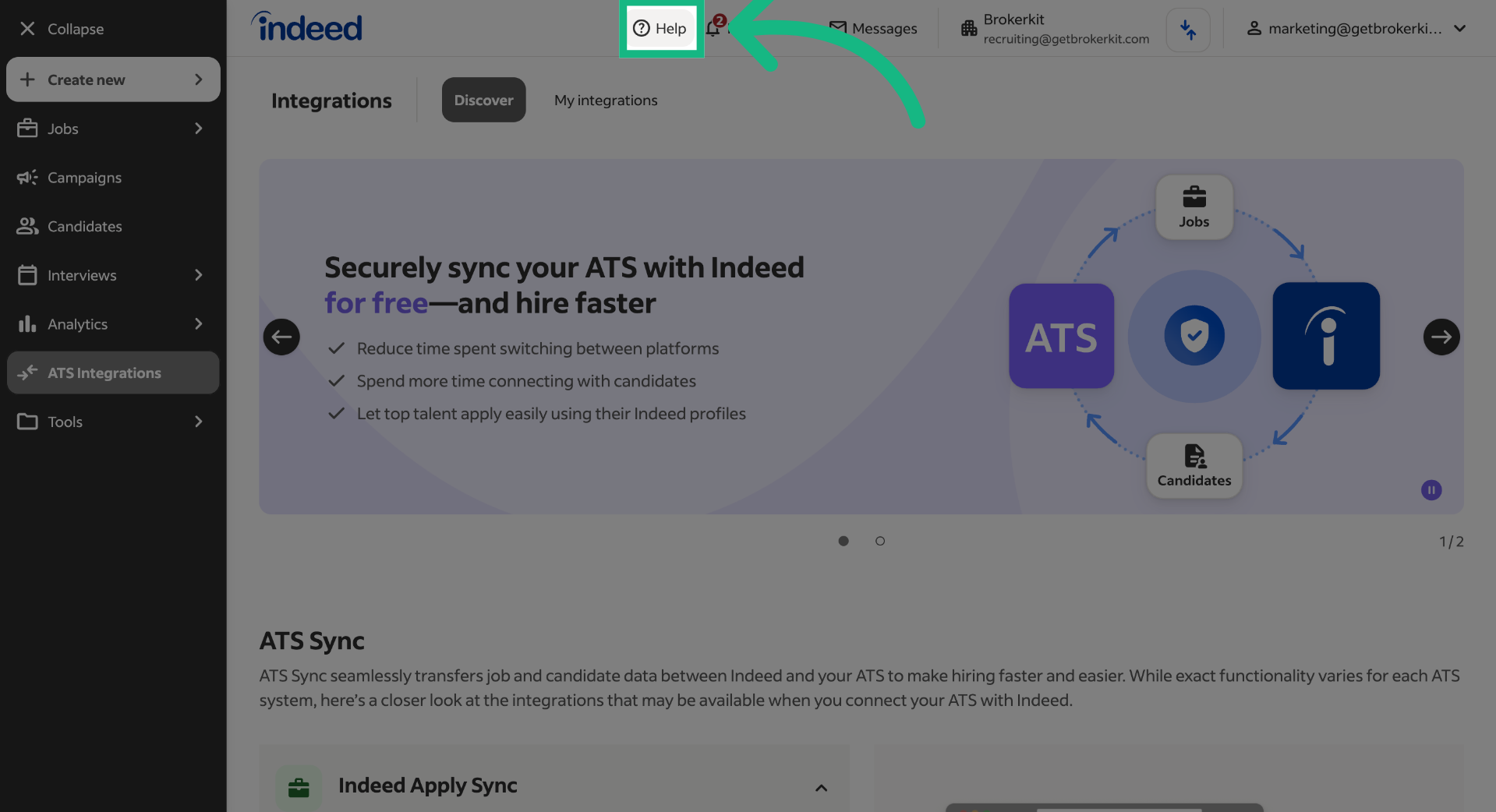
3. Select Contact Us
Click on 'Contact us' to initiate communication with support for assistance.
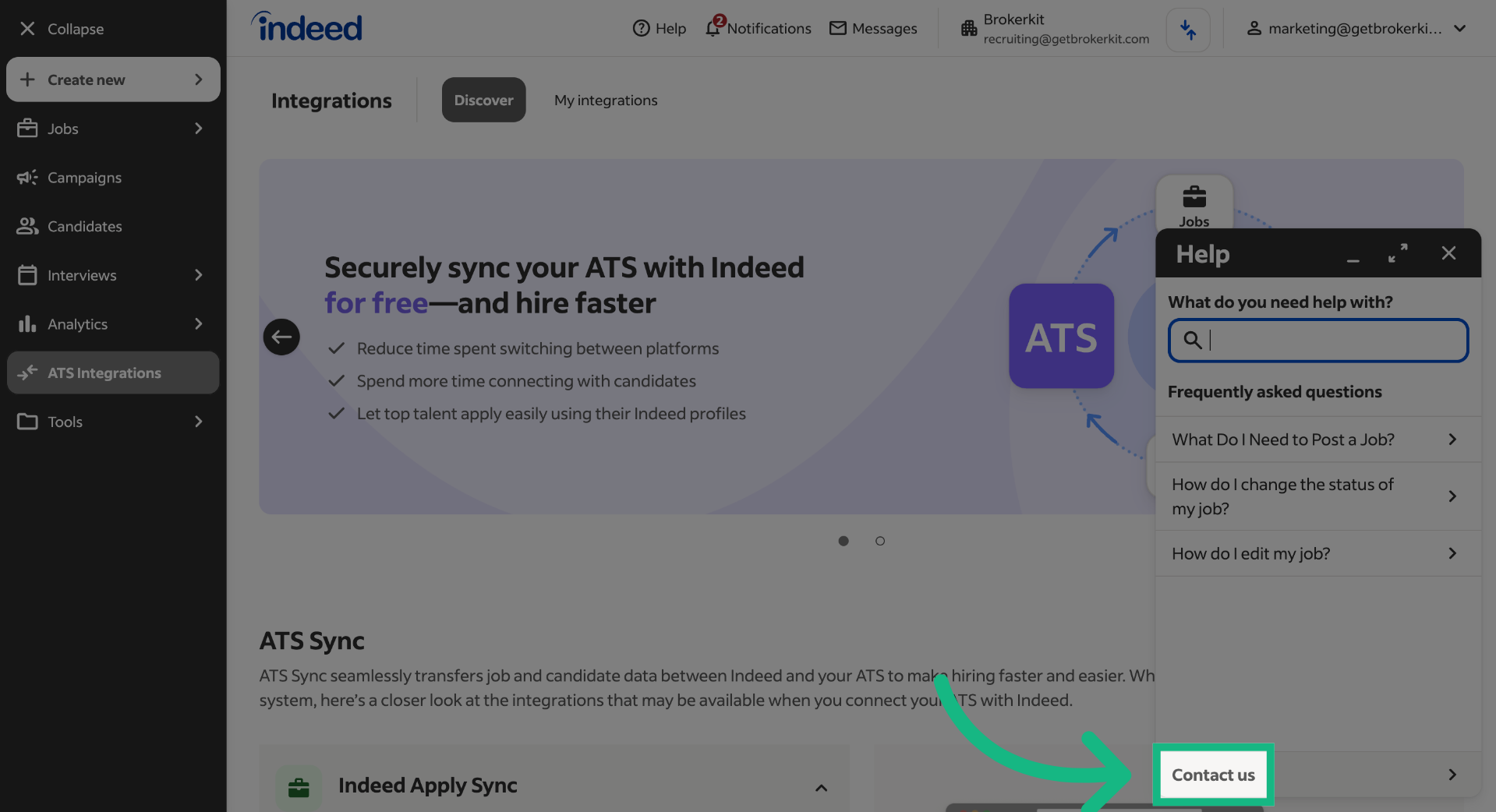
4. Start Chat Support
Click 'Chat with us' to begin a live chat session with the support team.
If this option is not available, you can use the 'Send us a message' option, so that the support team can get back to you via email.
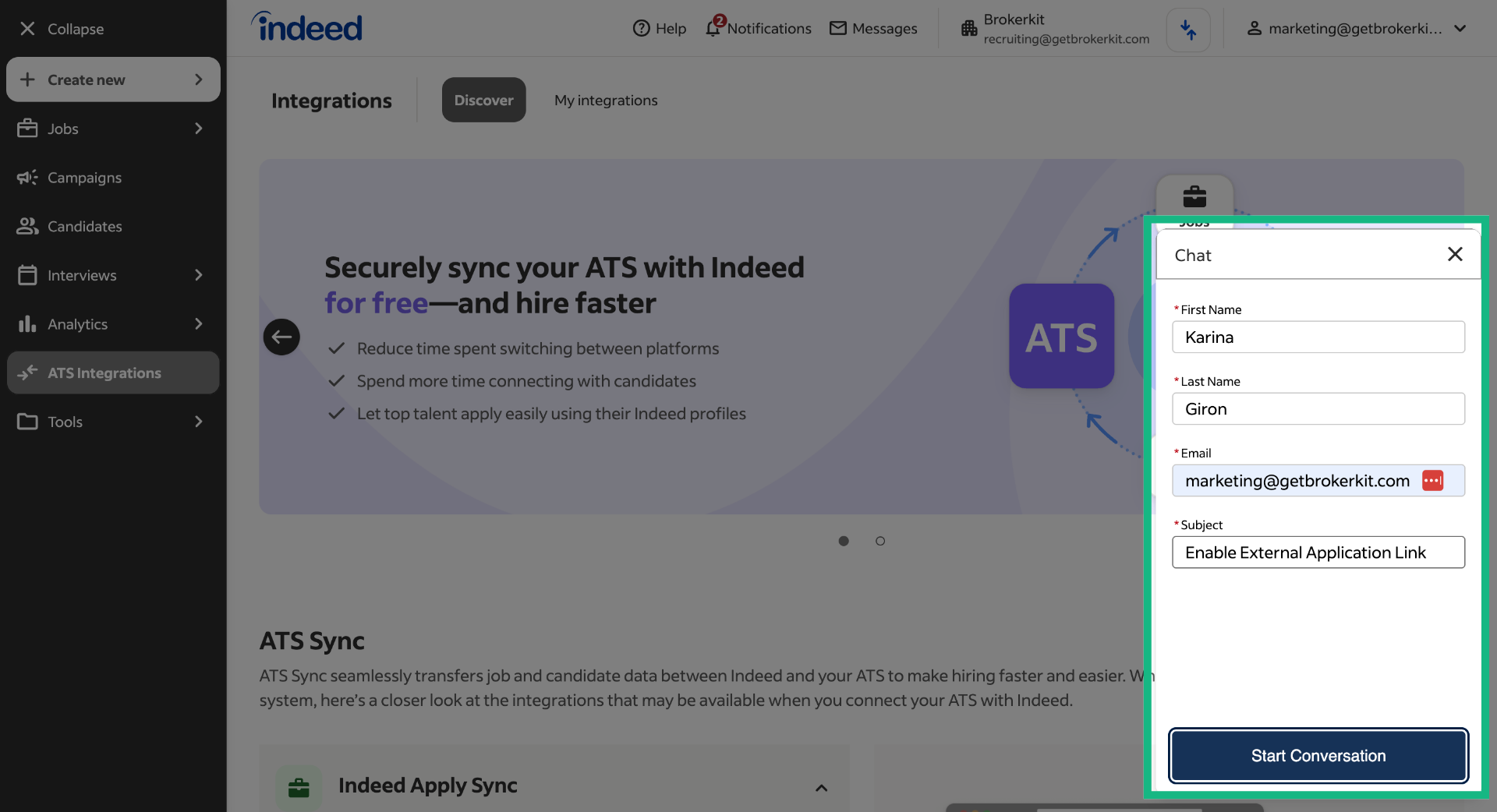
5. Complete details
Fill out your personal information, then add a general subject such as "Enable External Application Link." Finally, click Start Conversation.
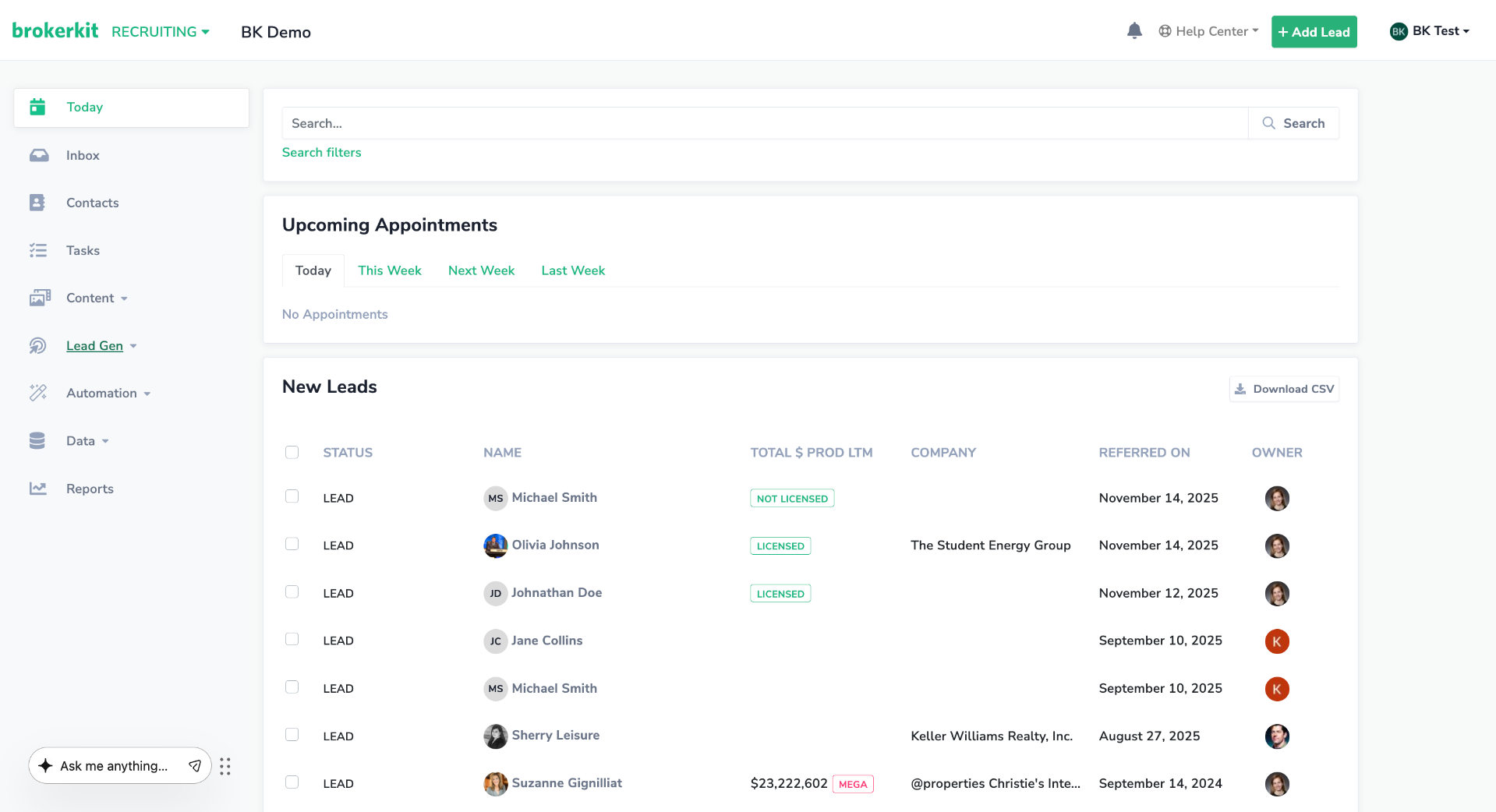
6. Switch to Brokerkit Website
Switch to the Brokerkit website to access Brokerkits jobs feature.
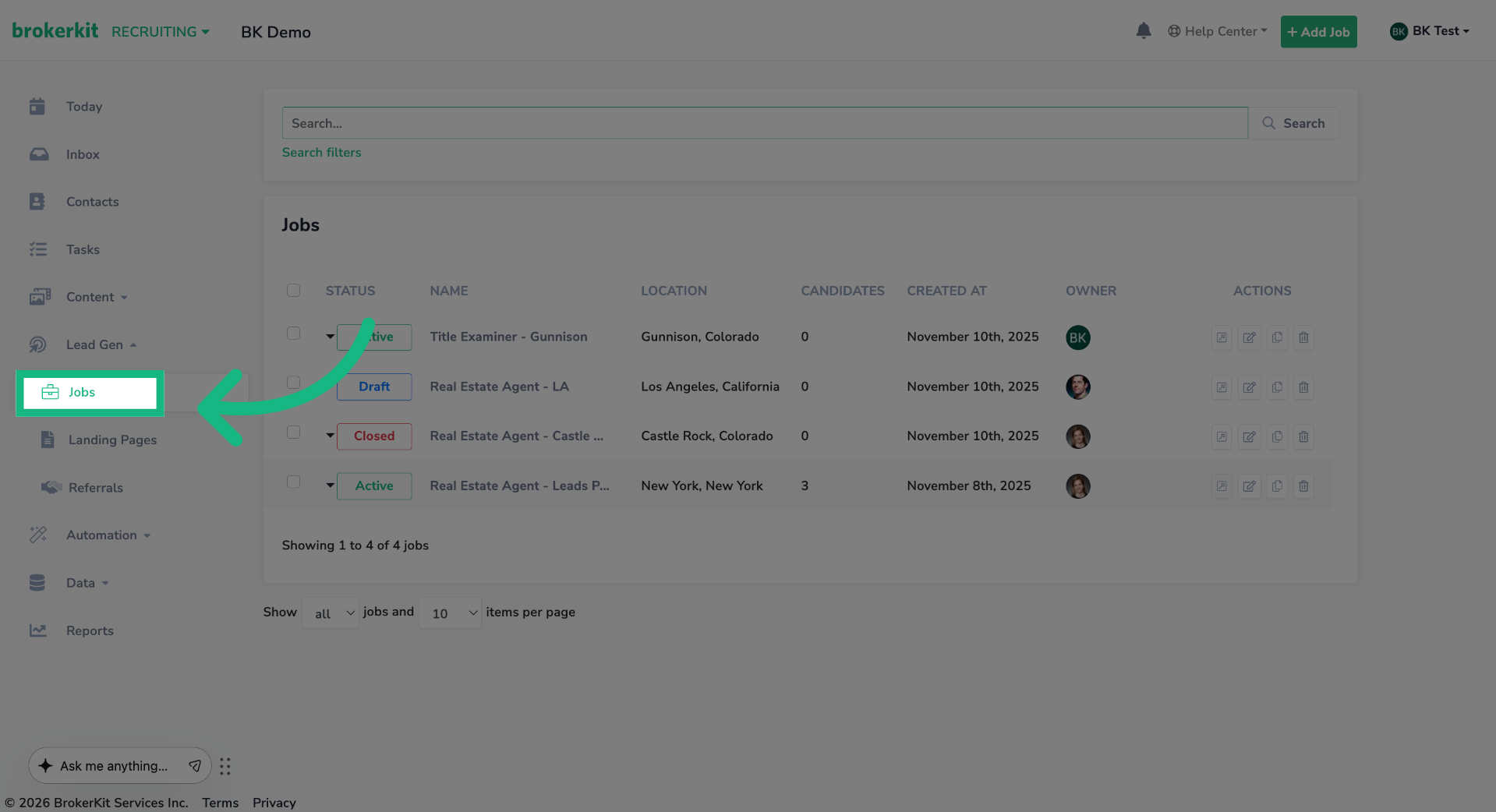
7. Access Job Listings
On the left menu, click Jobs.
8. Job Form
If you don't have any jobs, start by following the tutorial in the upper-right corner to create one.
However, if you have an existing job, please continue this video
How to create jobs?
9. Access Job Listings
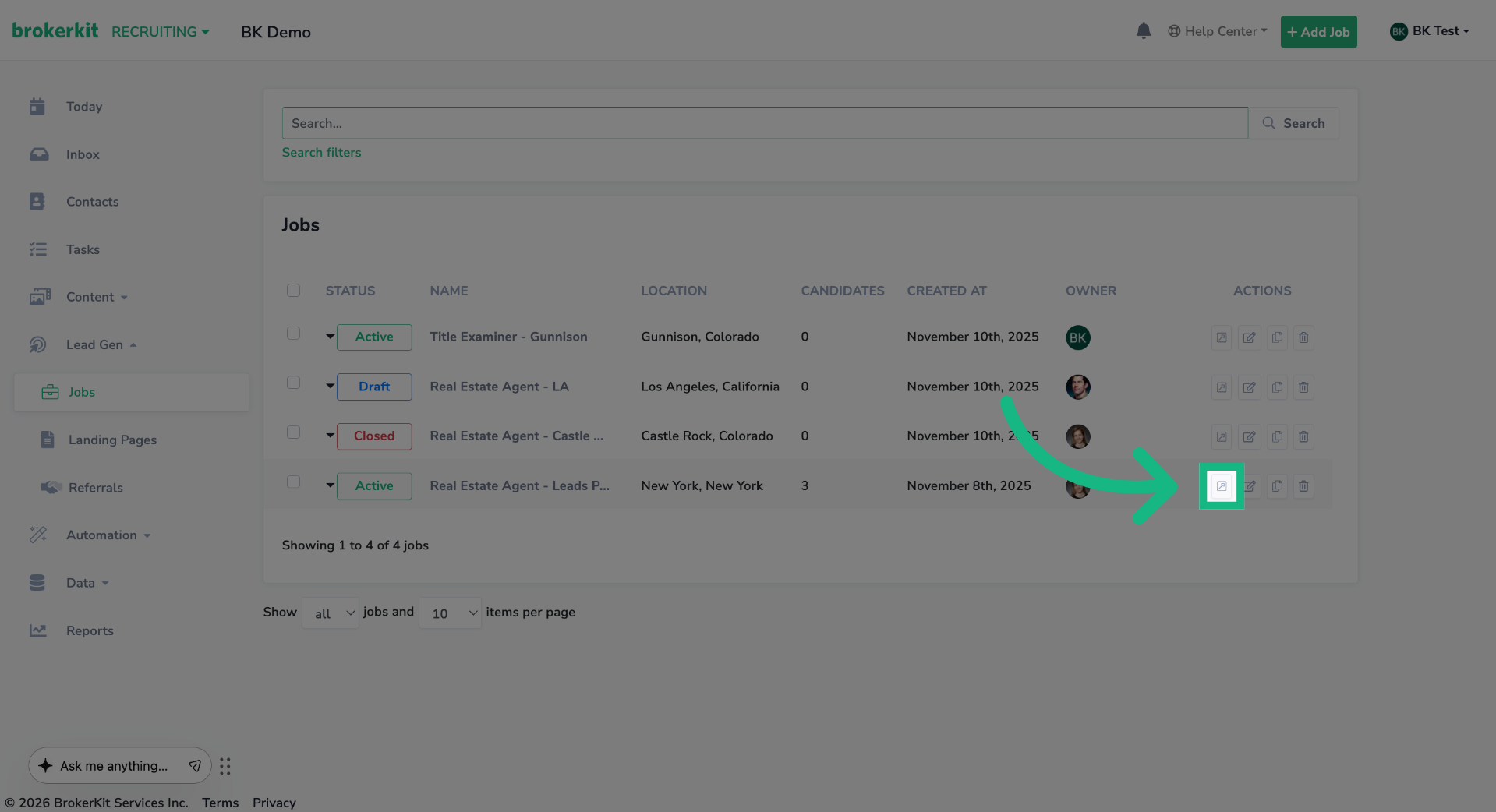
Click the edit button of the job you want to use.
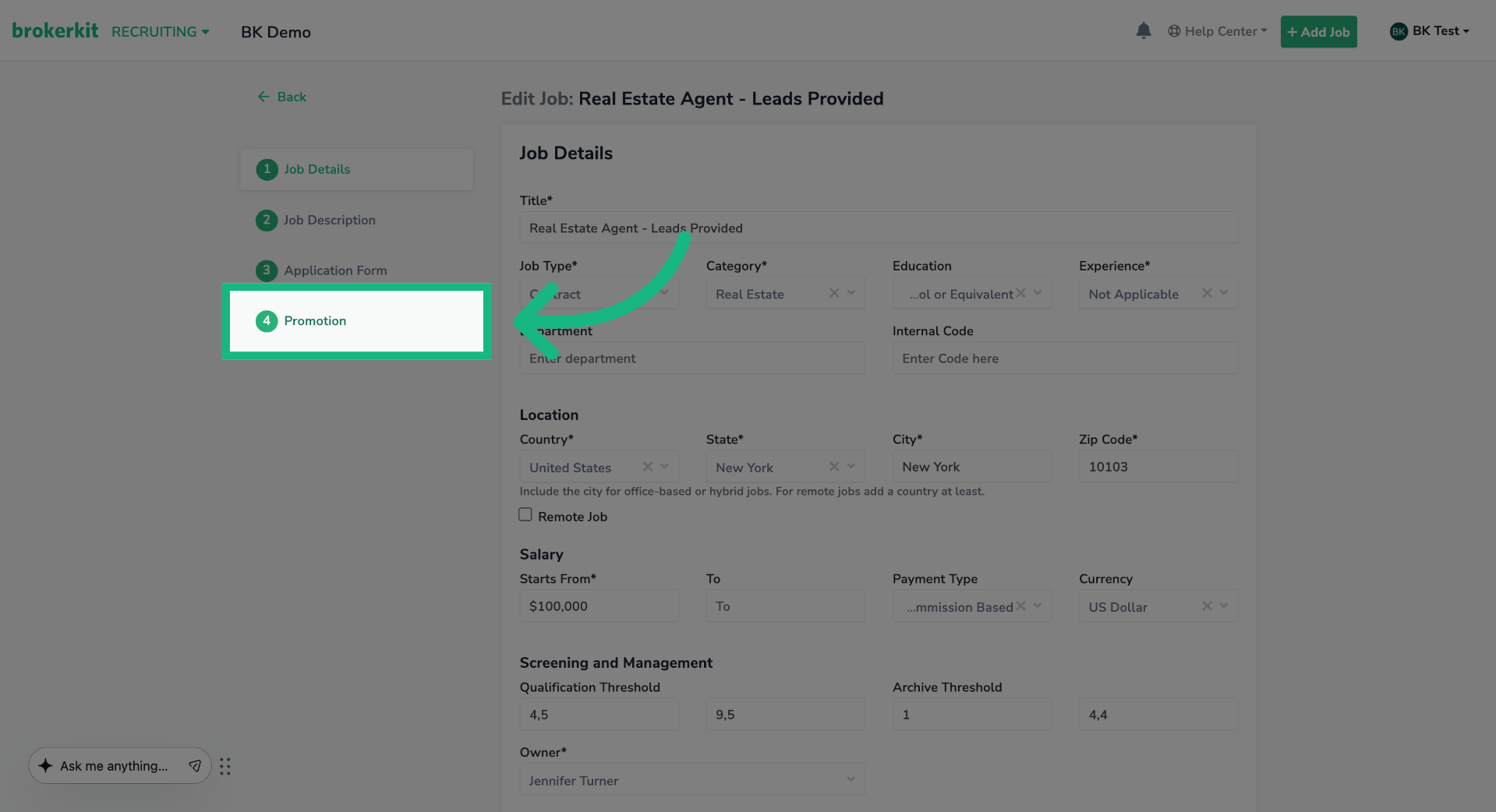
10. Select Promotion Campaign
On the left menu, click the Promotion option.
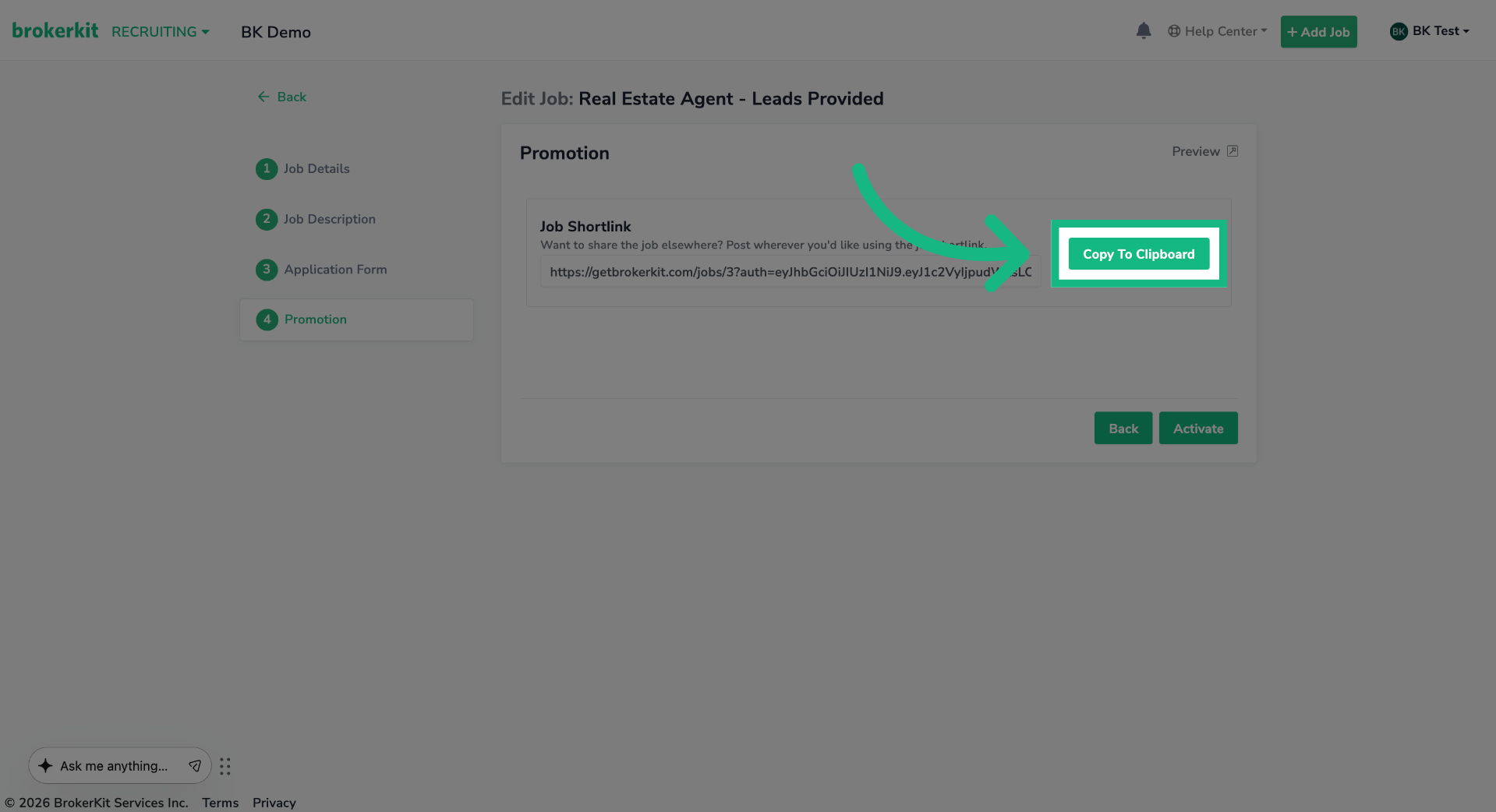
11. Copy Promotion Link
Click Copy To Clipboard to copy the promotion link to use on Indeed.
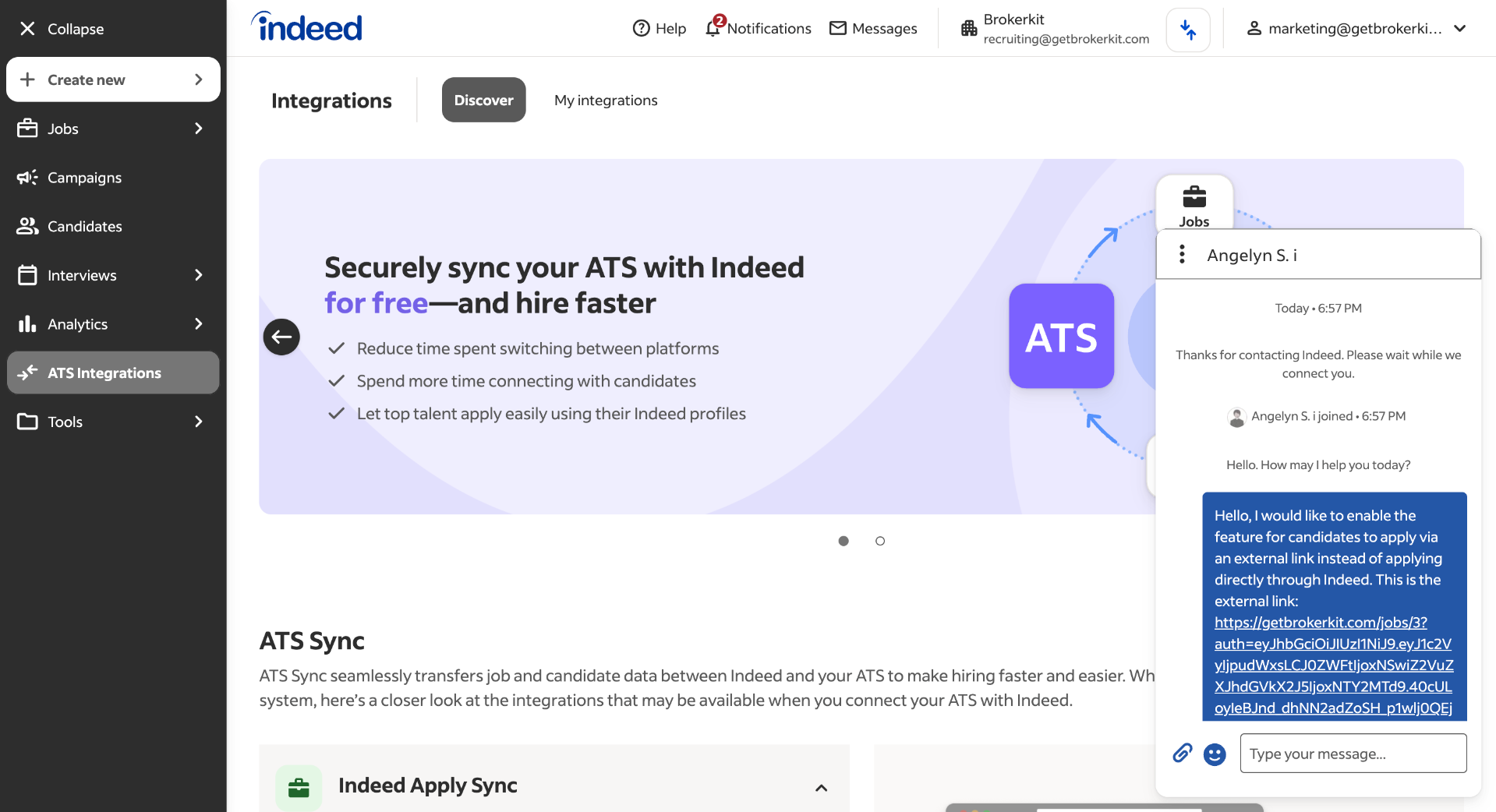
12. Navigate To Chat Menu
Go to the chat menu and send your request to enable the feature for candidates to apply via an external link. Be sure to include the promotional link you just copied, because the Indeed support team requires it to verify that the link is valid.
13. Access Jobs Section
Once the Indeed support team confirms they have enabled the feature, go to the Jobs section.
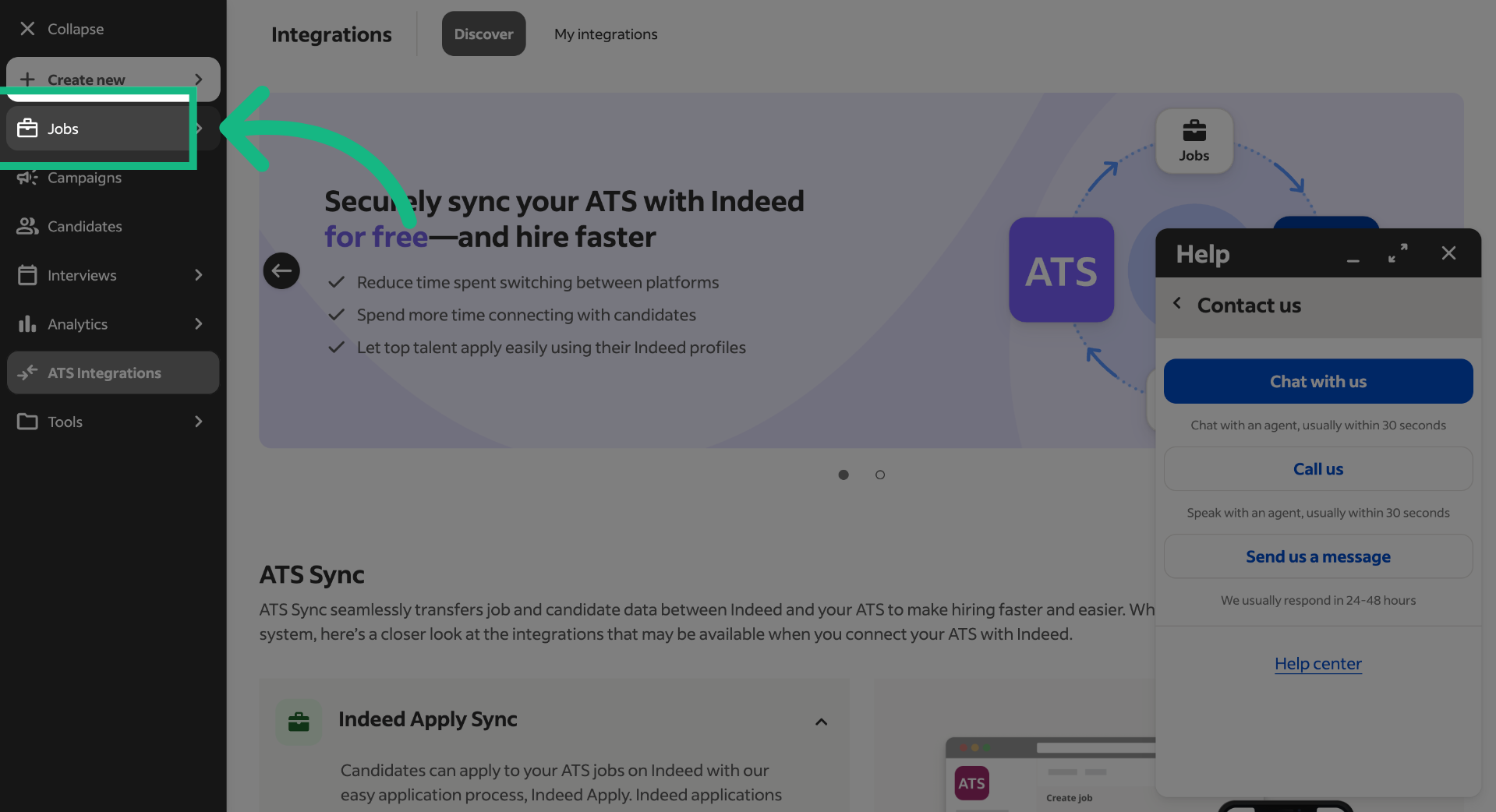
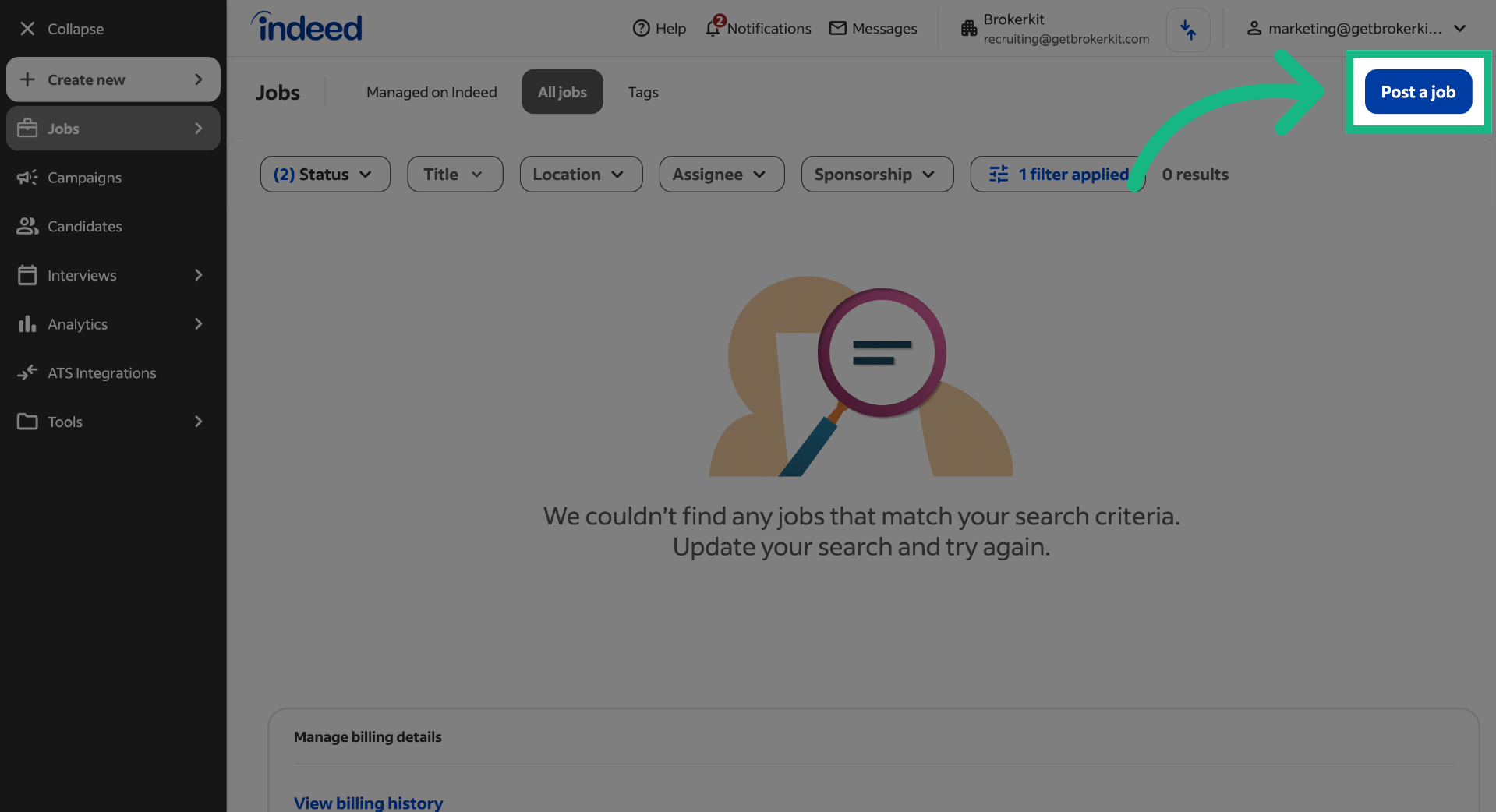
14. Select Post A Job
If you don't have an existing job, click 'Post a job'.
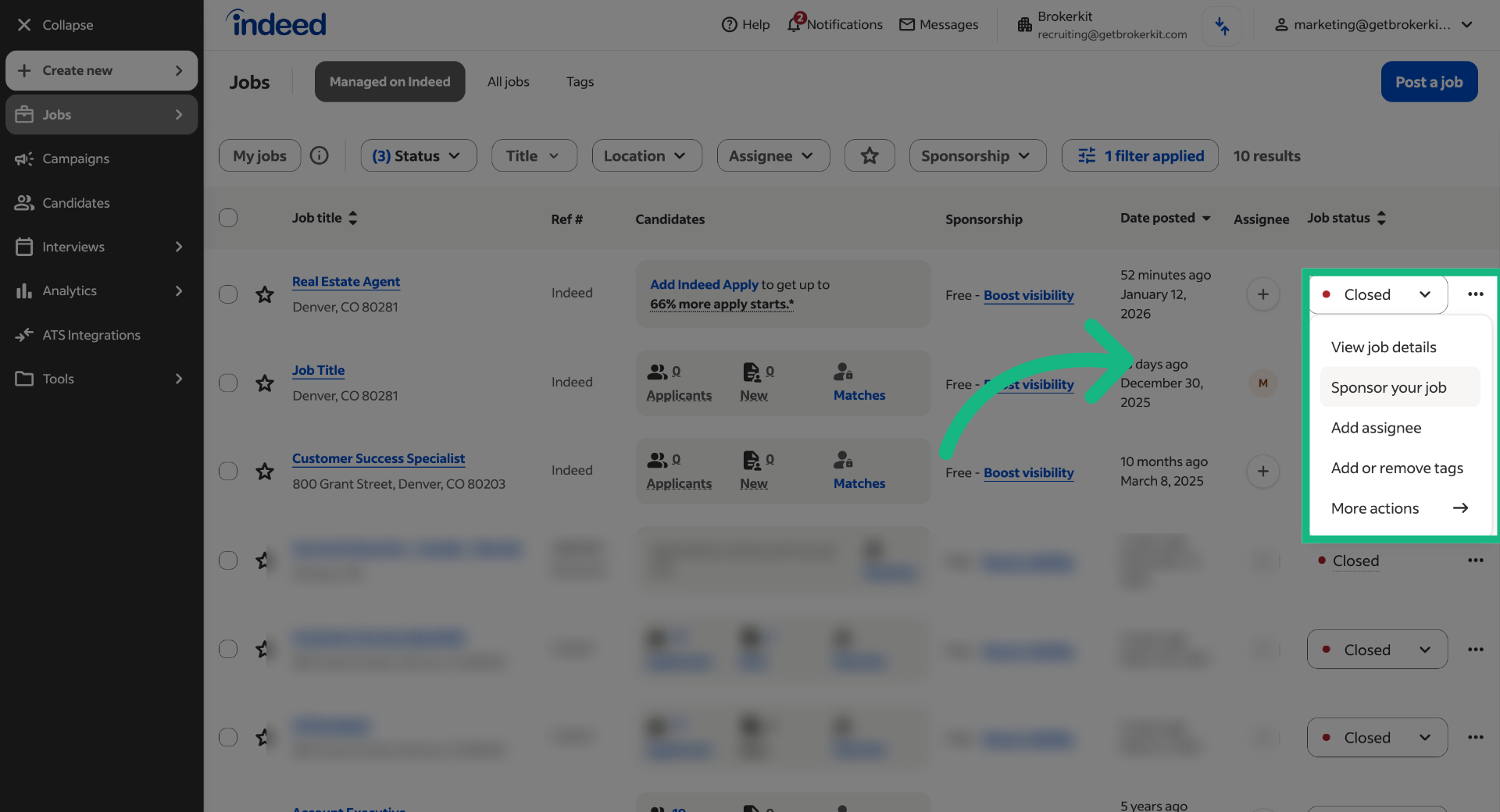
15. Click "View job details"
If you have an existing job, click on the 3 dots and select the option View job details.
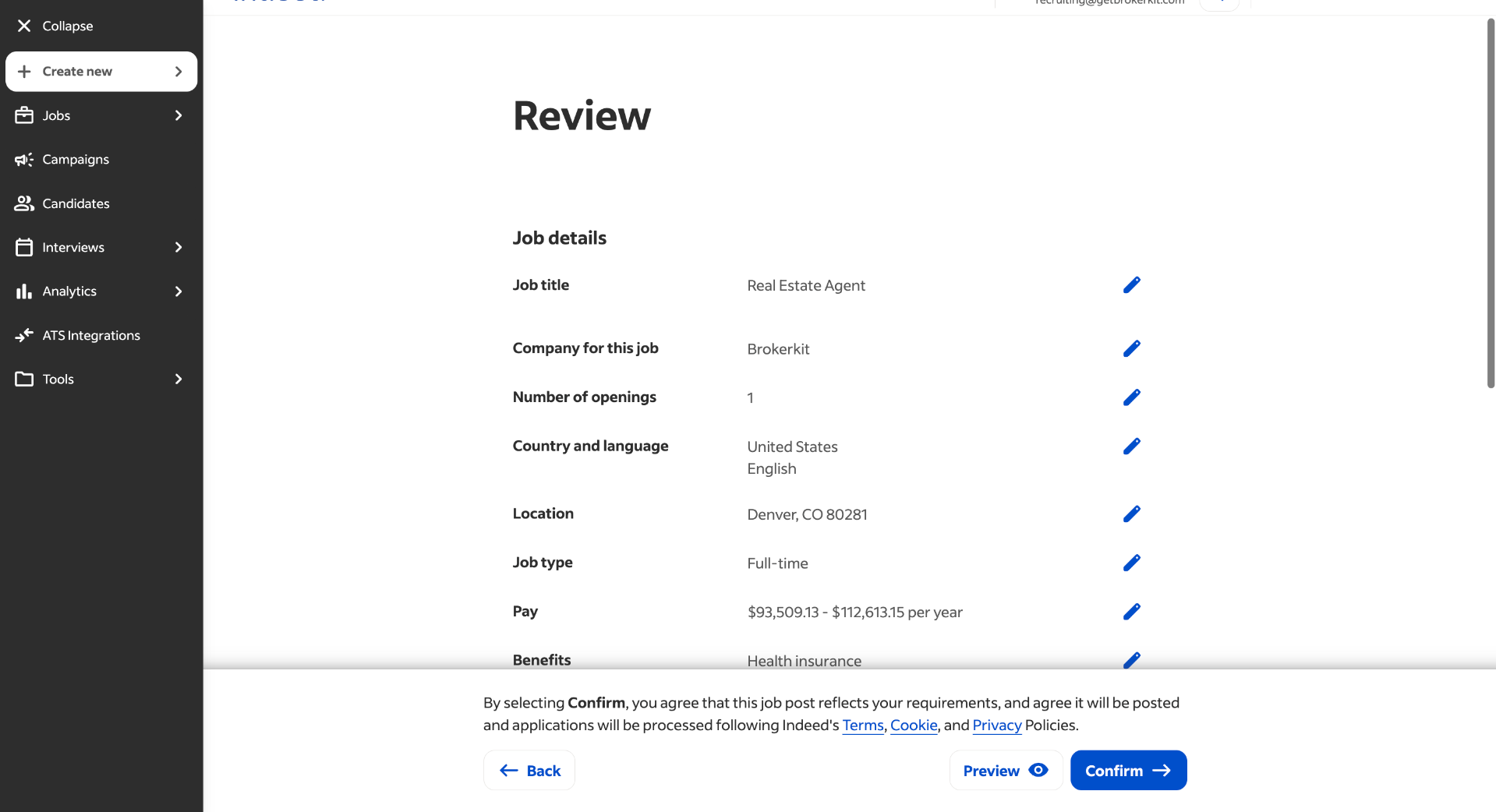
16. Review Job Details
Review all job details are correct and then scroll down.
17. Open Additional Options
Click to edit the application method setting.
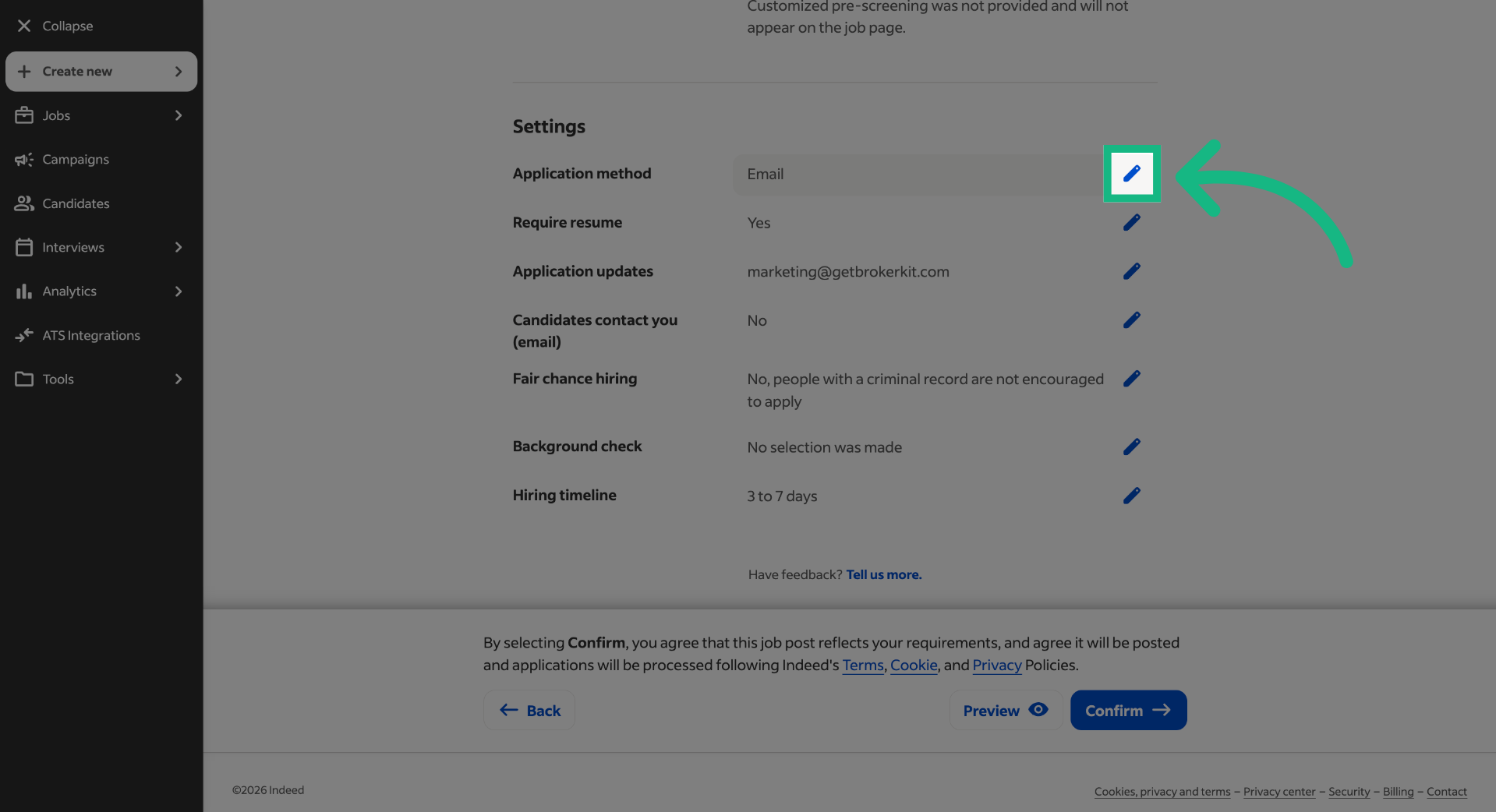
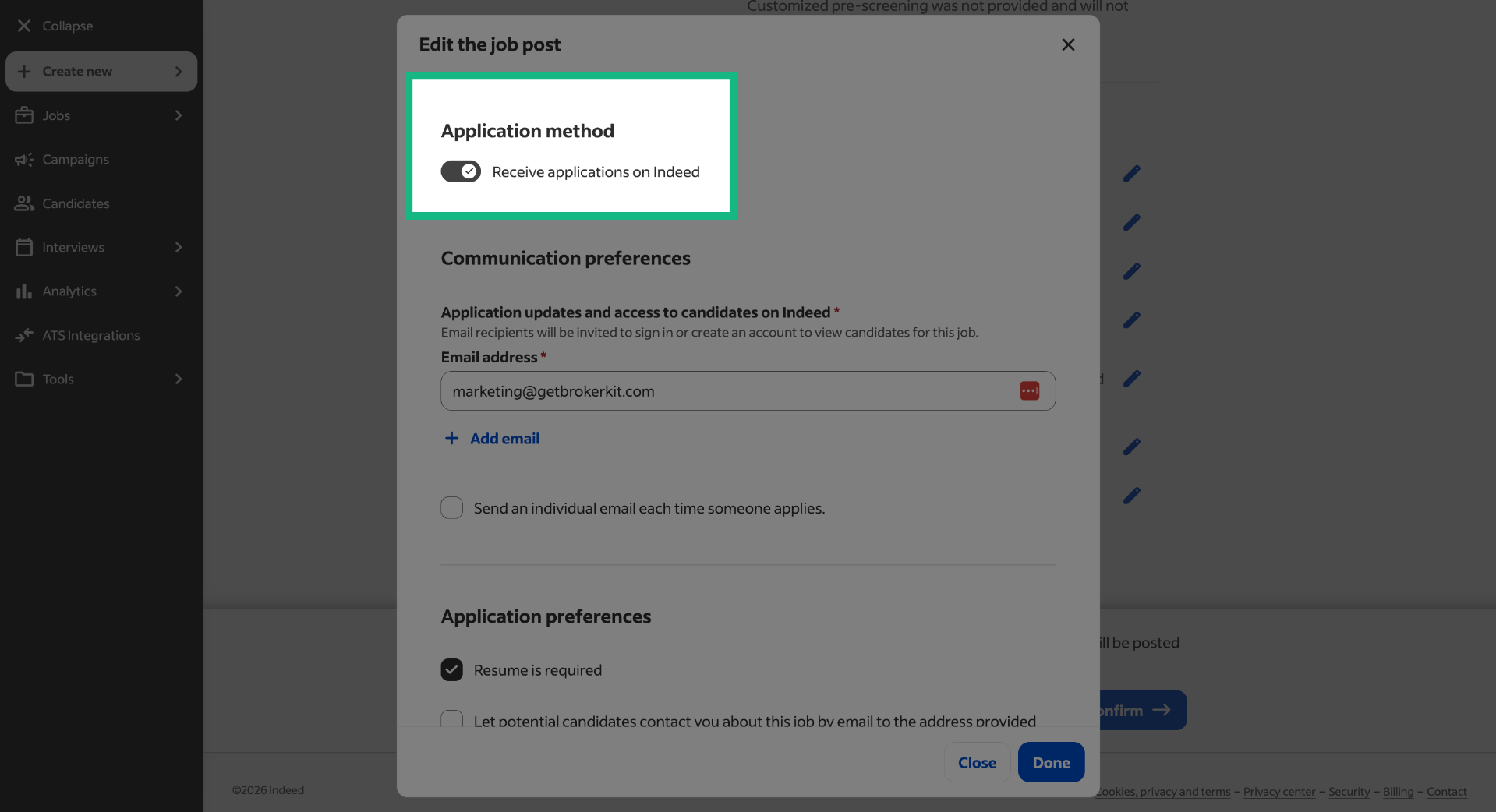
18. Access More Settings
If Indeed has correctly enabled the feature you requested, you should now see a toggle under the Application method section.
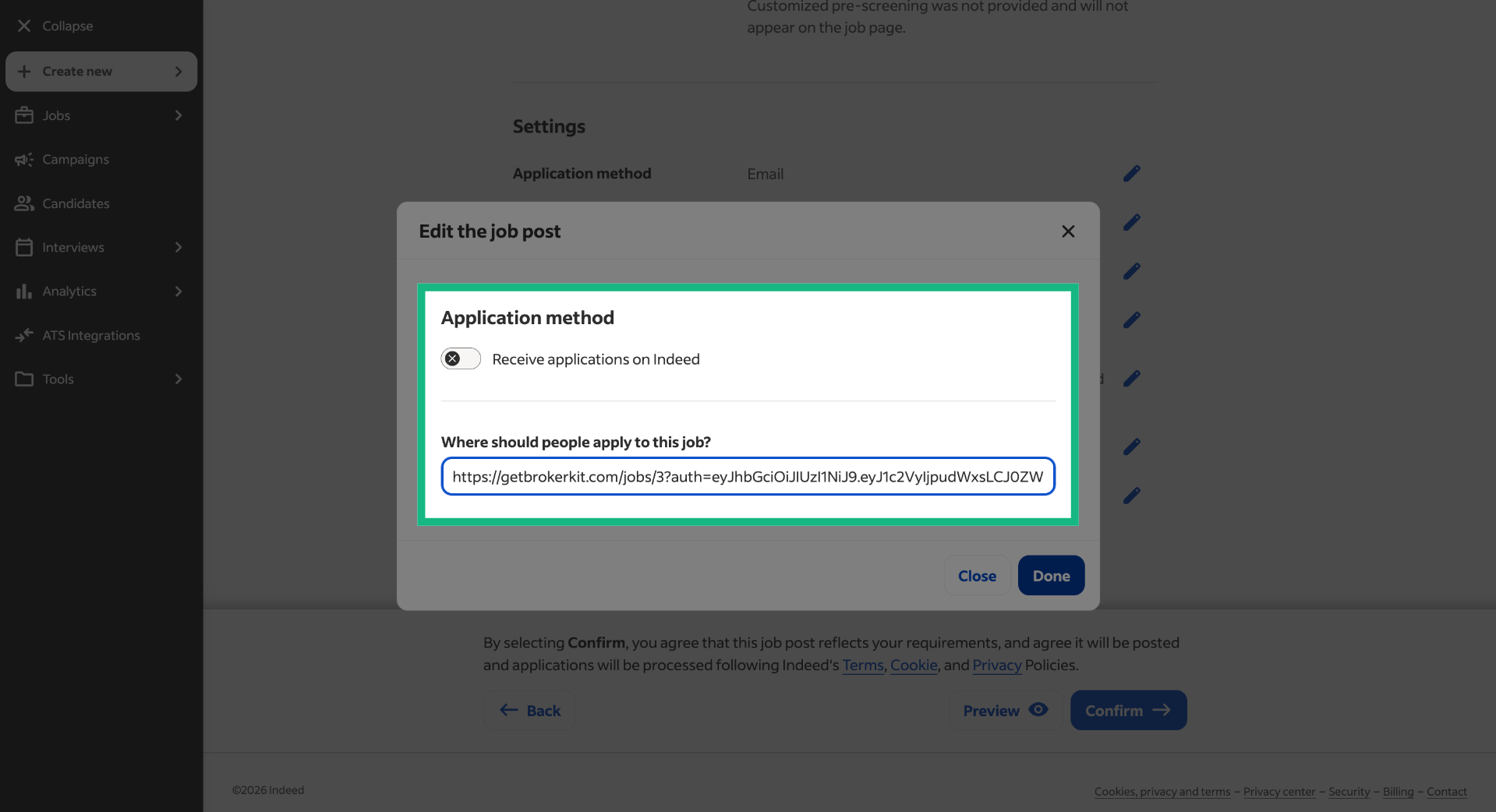
19. Select Application Link Field
Turn off the switch for 'Receive applications on Indee' and paste the promotion link you just copied from Brokerkit. Then click 'Done'.
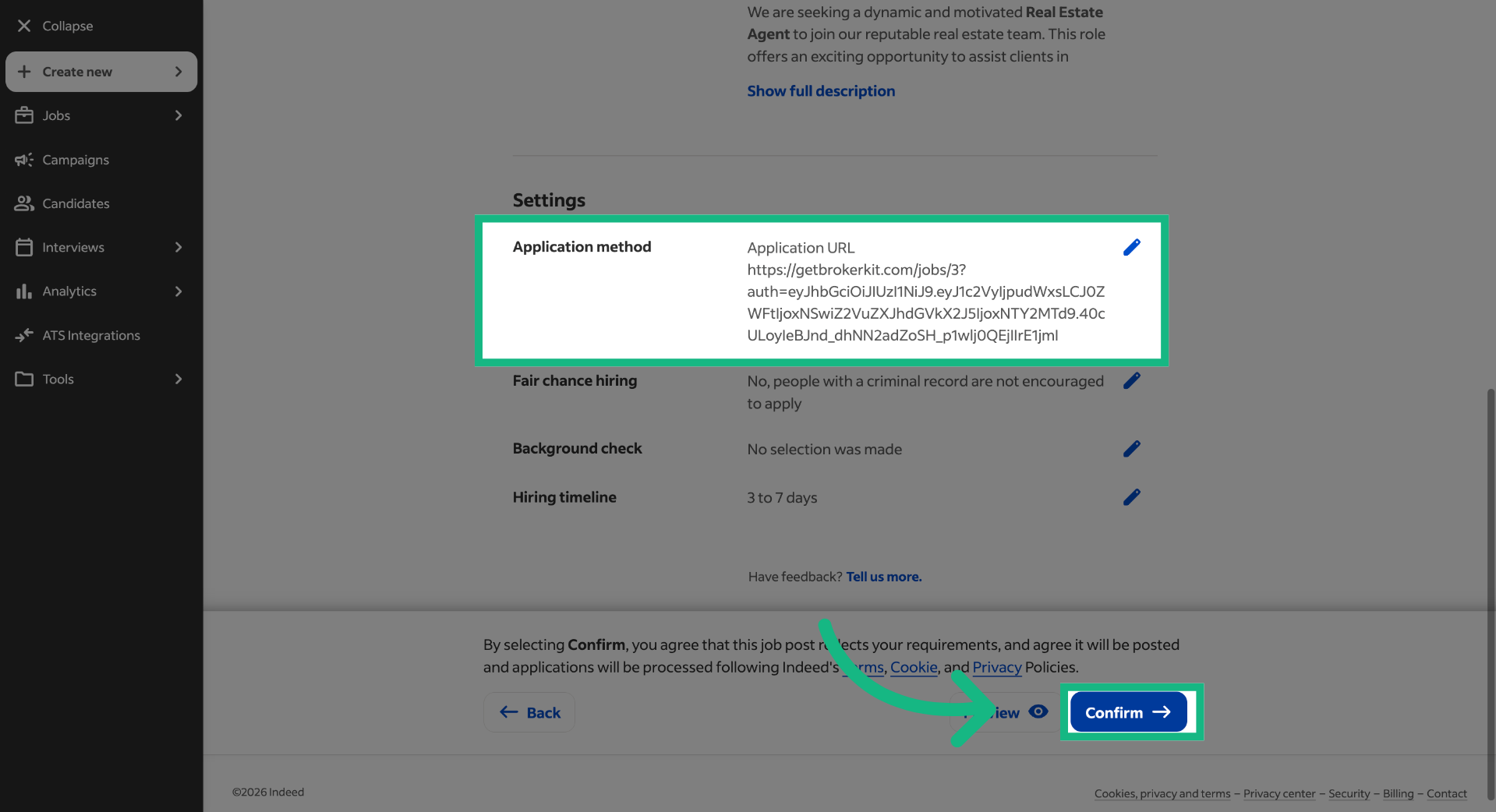
20. Review job details
Review the job details and click Confirm to finish the process
That concludes this tutorial. If you have any questions, please reach out to our support team at support@brokerkit.com.