
This tutorial shows you how to use Brokerkits new Jobs feature to post a job on LinkedIn and manage applicants directly within Brokerkit.
Go to www.linkedin.com
1. Navigate to Jobs Page
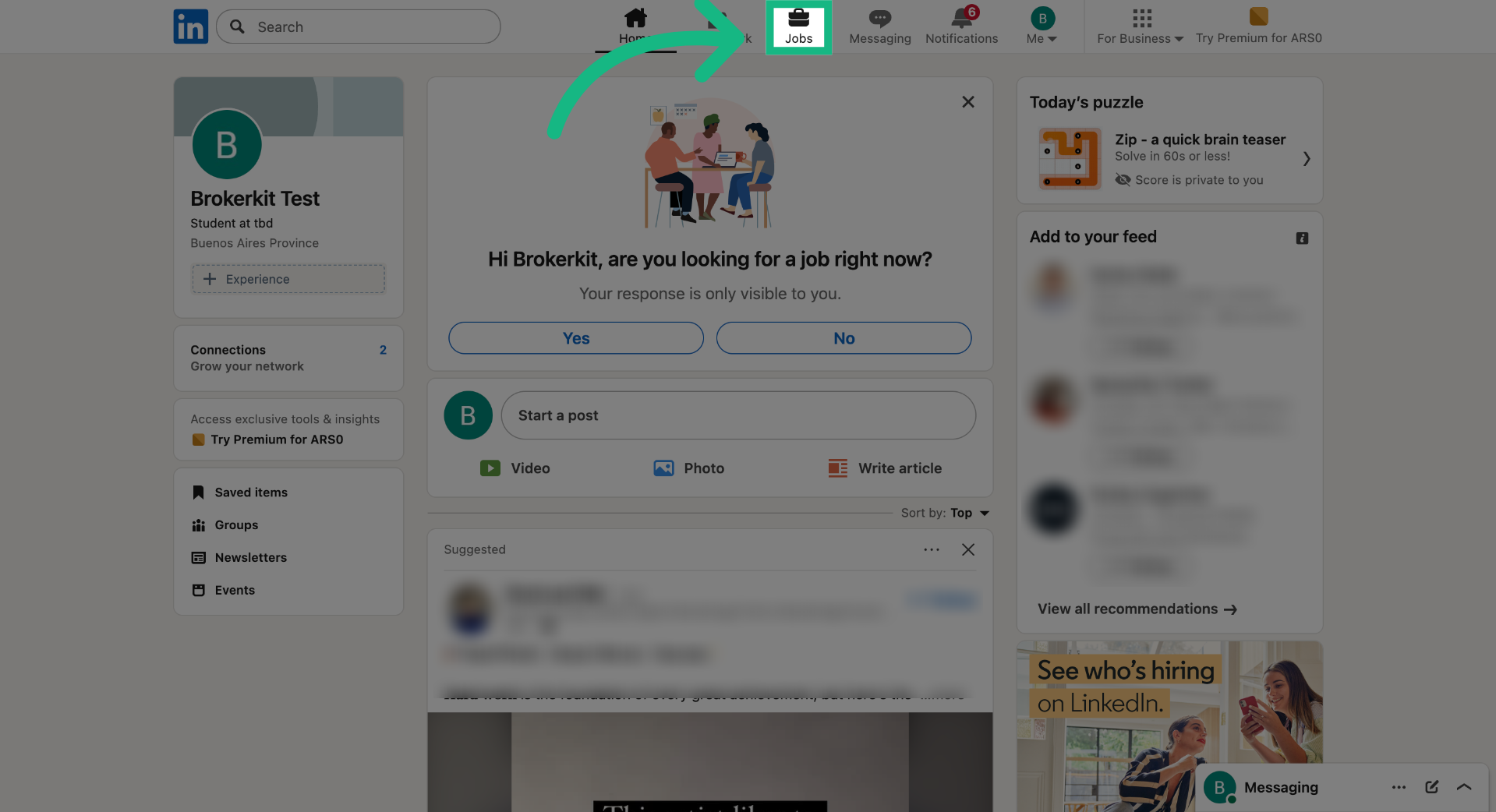
To start, go to your Linkedin account and click the Jobs tab.
2. Start Free Job Posting
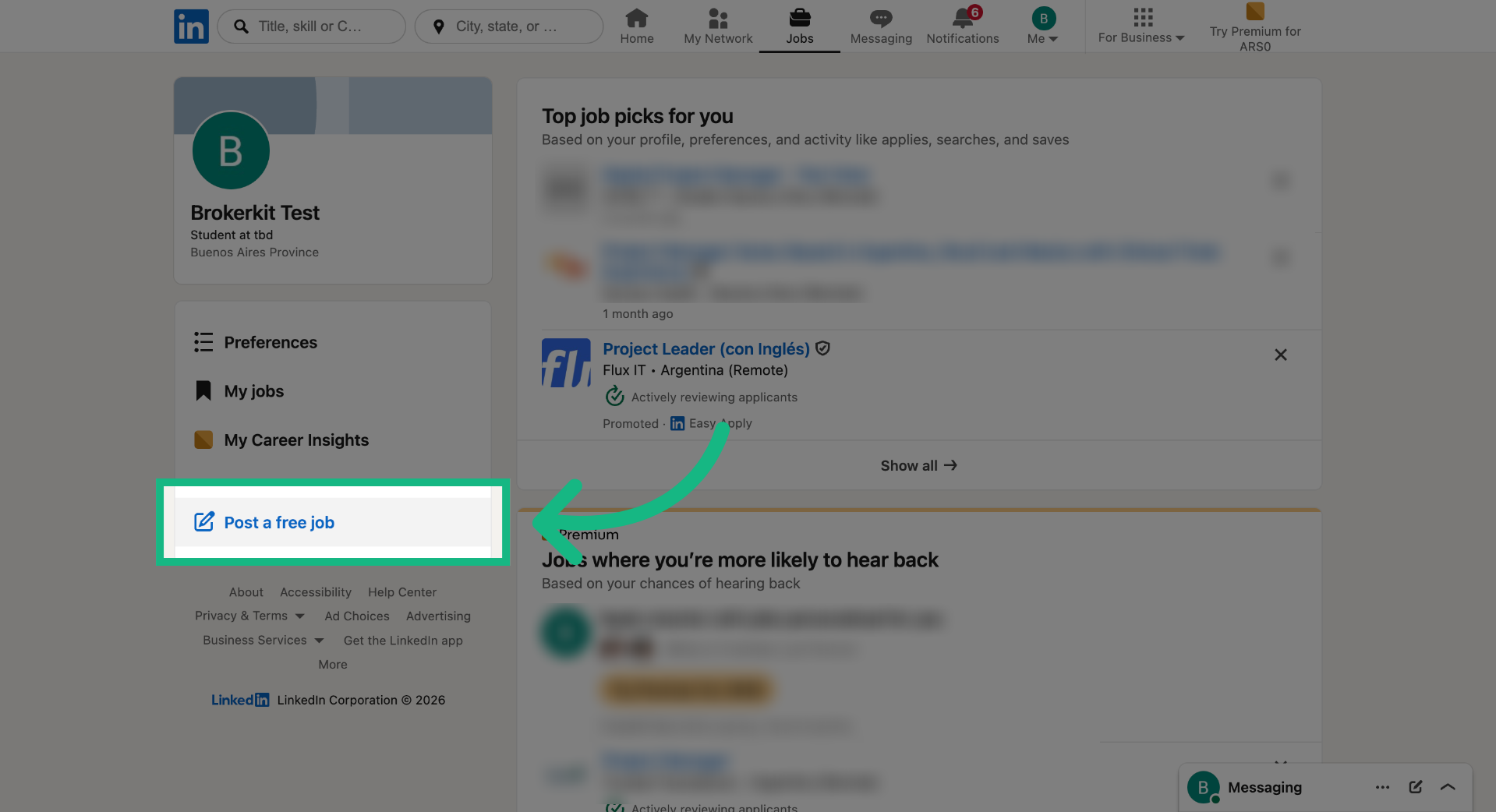
Click the Post a free job button to begin creating a new job listing on LinkedIn.
3. Proceed to Next Step
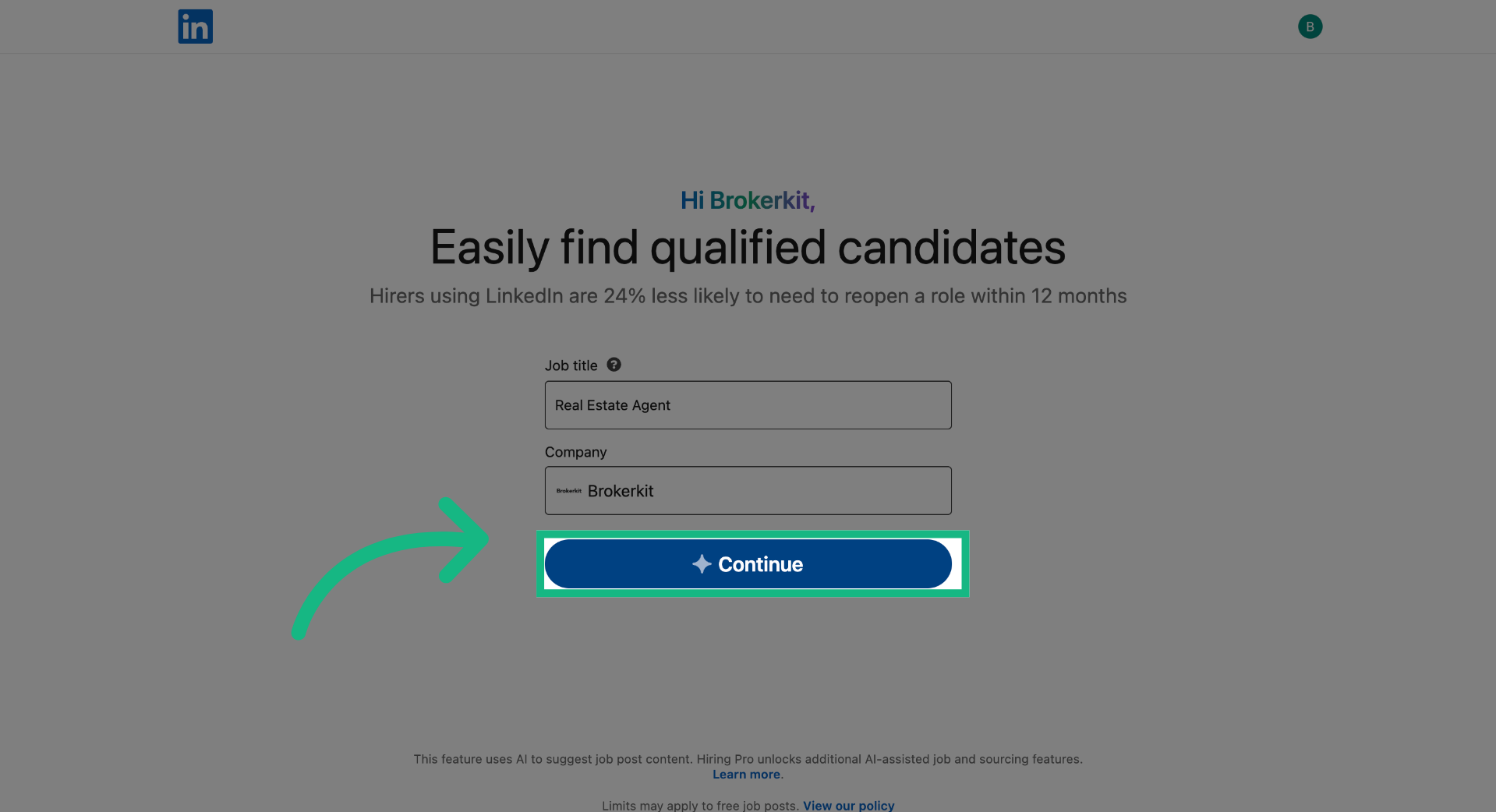
Complete the details and click the Continue button.
4. Select Location Option
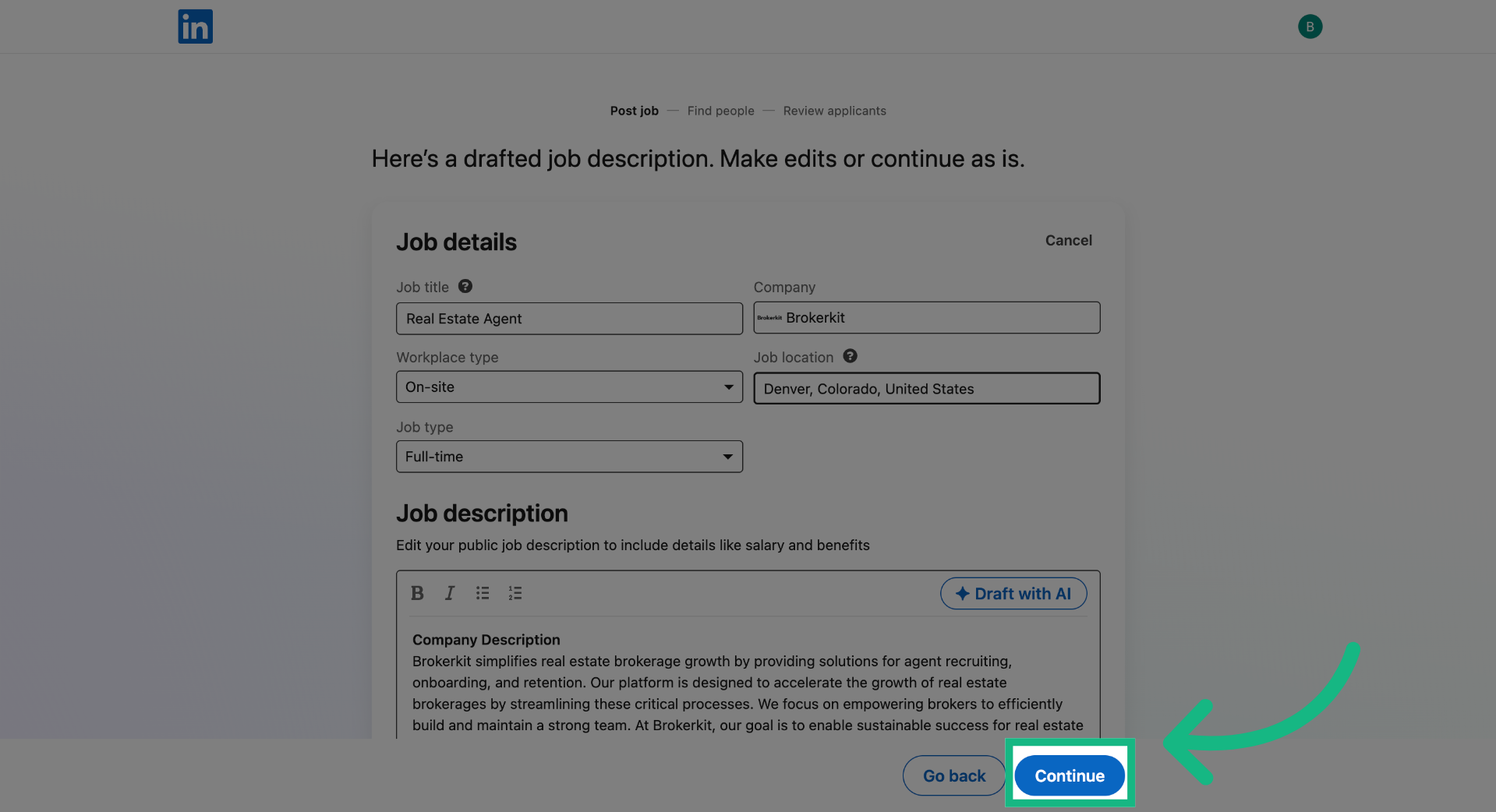
Continue completing the required details, then click Continue.
5. Access Additional Options
Click the edit button area to update the Manage applicants setting.
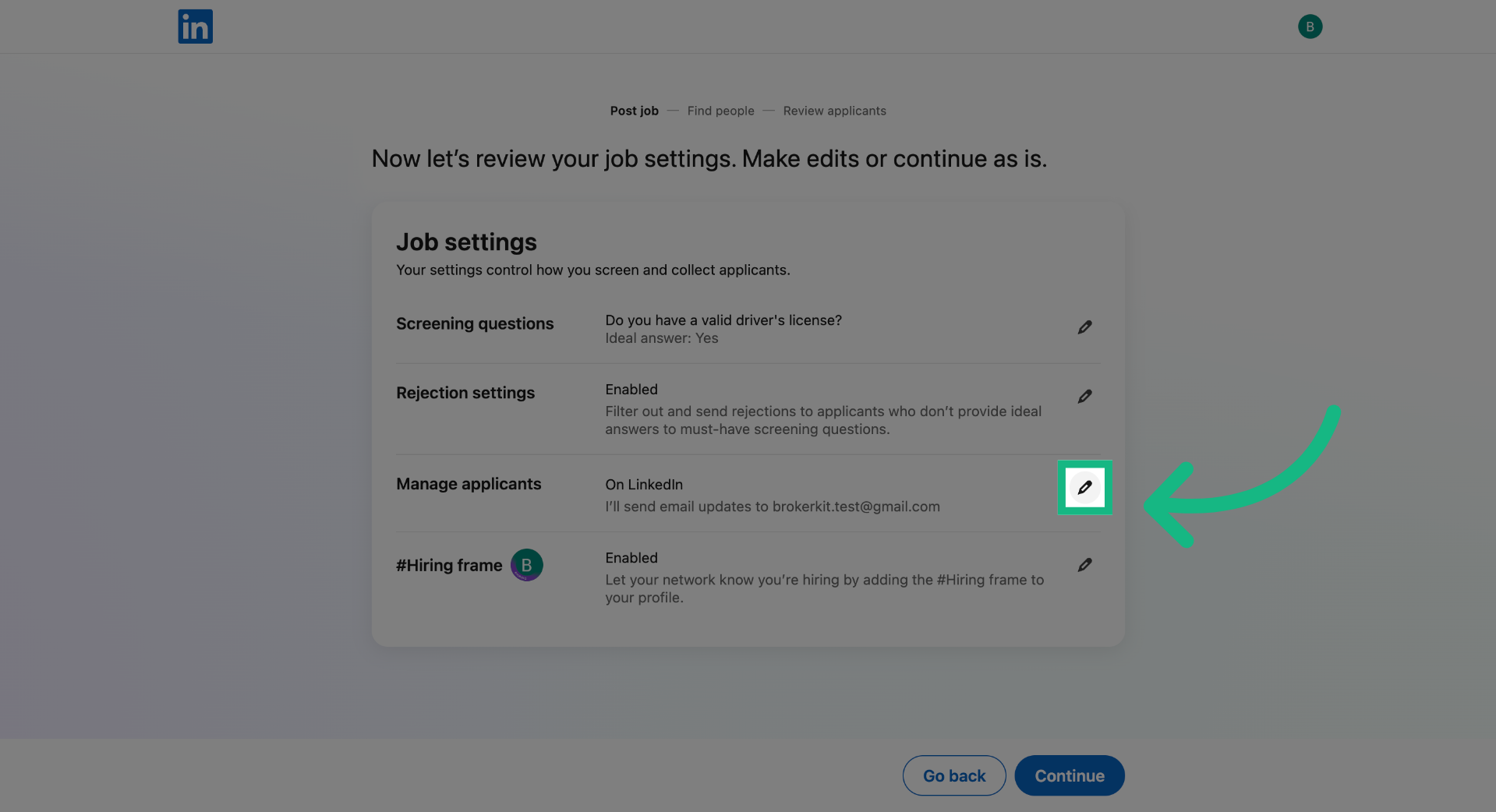
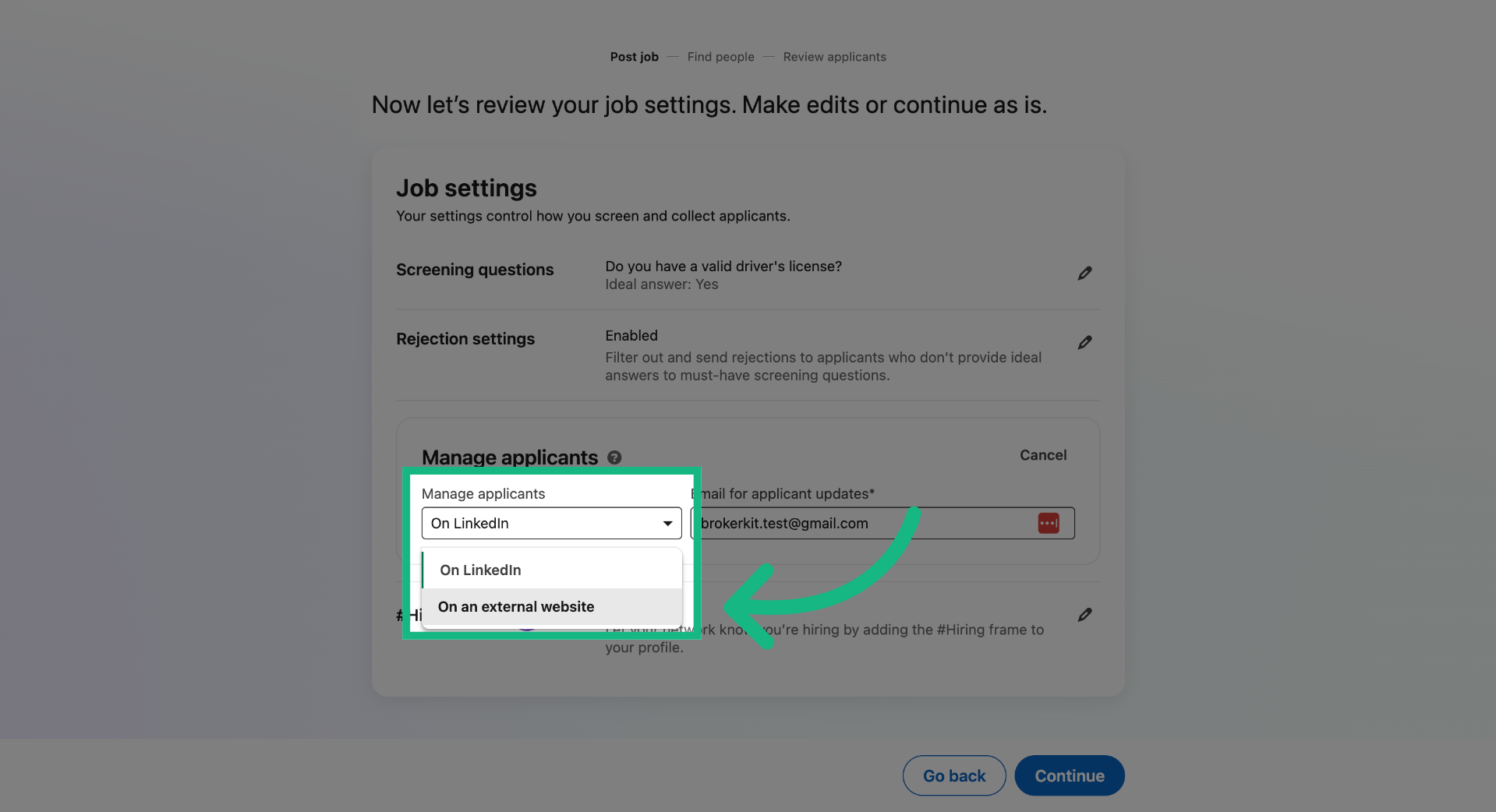
6. Choose External Website Posting
Select the option On an external website to post the job on a site outside LinkedIn.
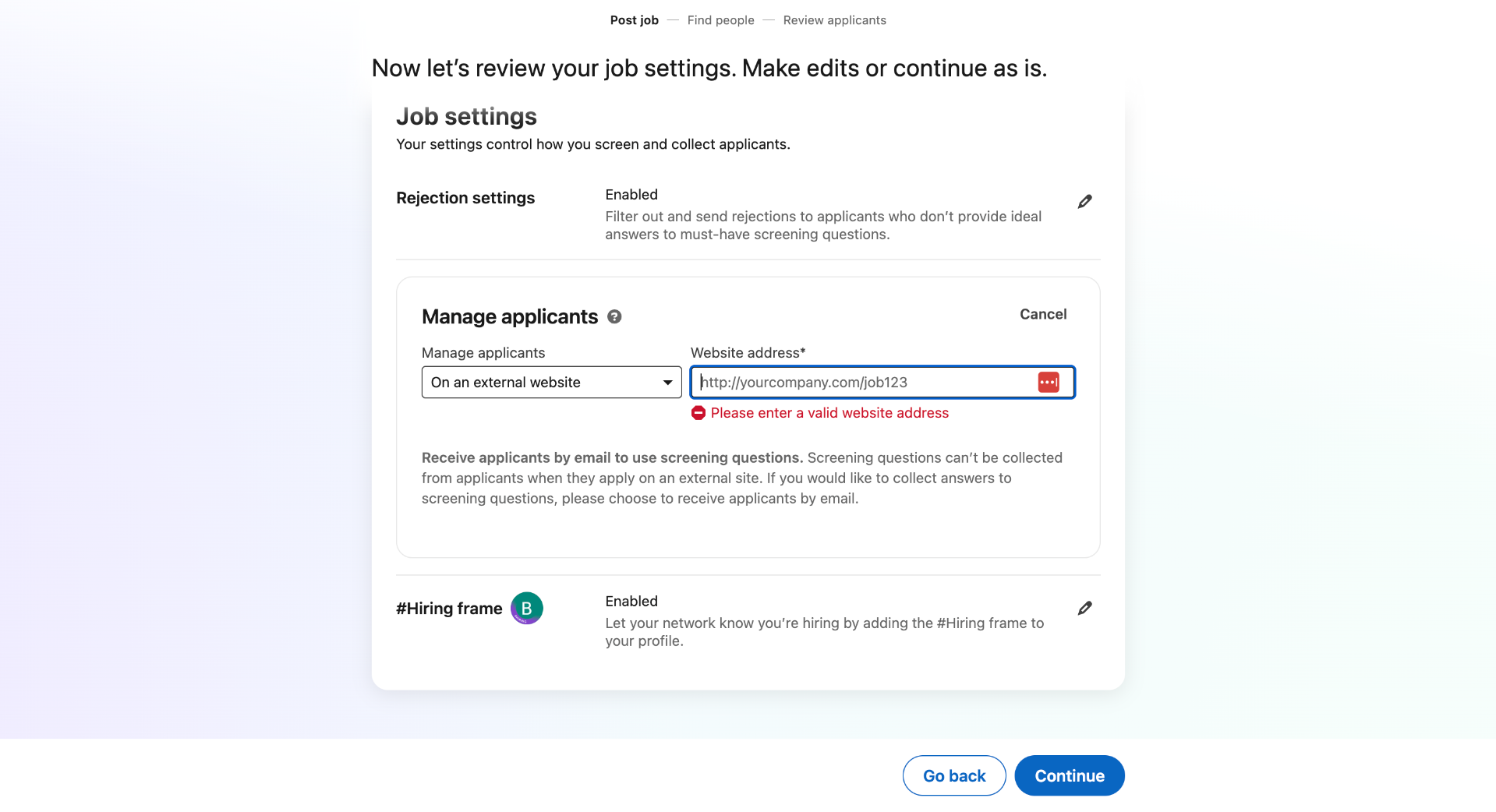
7. Open Website Address Field
Now let's find the link in Brokerkit.
8. Switch to Brokerkit Website
Switch to the Brokerkit website to access Brokerkits jobs feature.
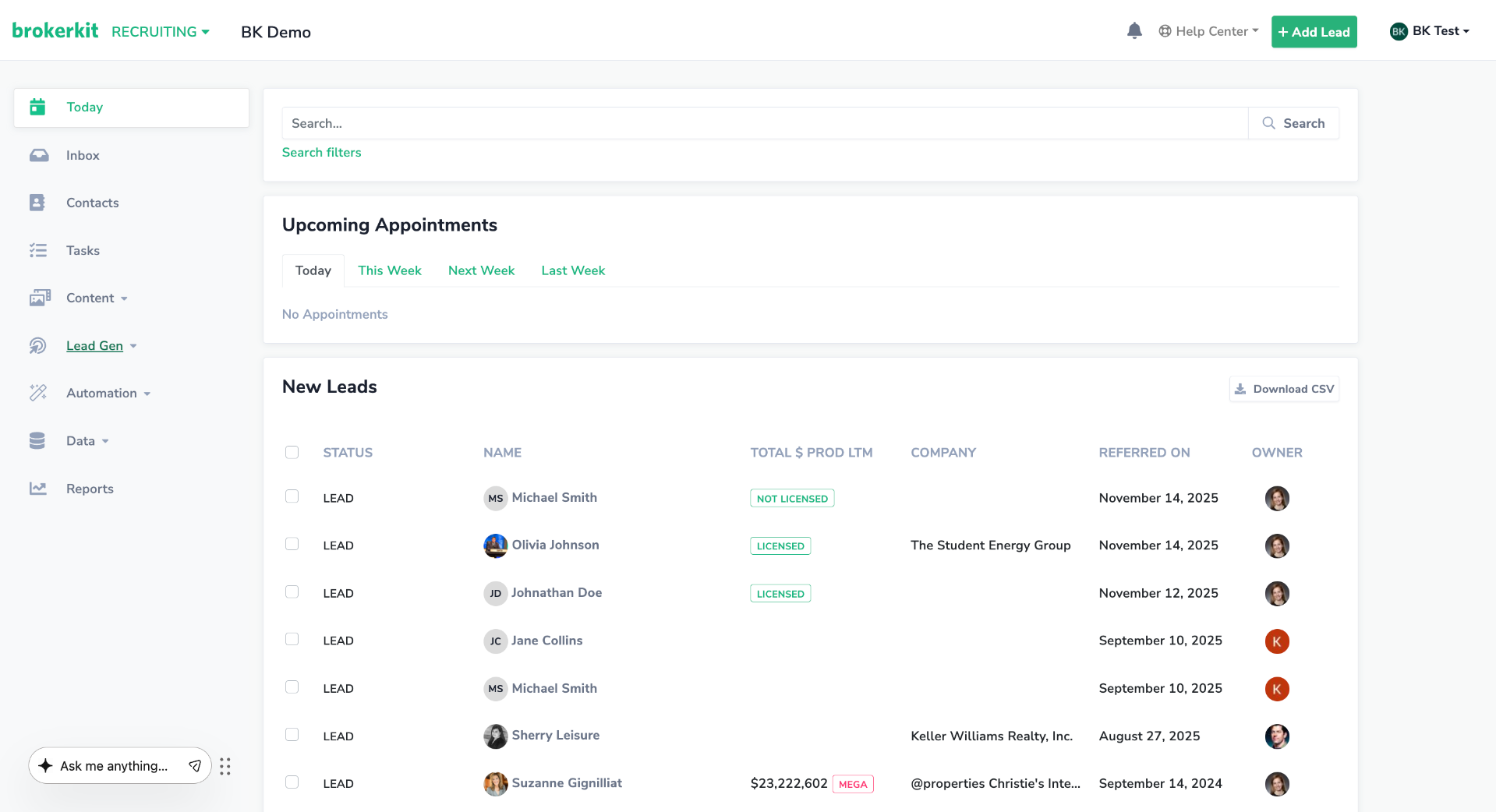
9. Access Job Listings
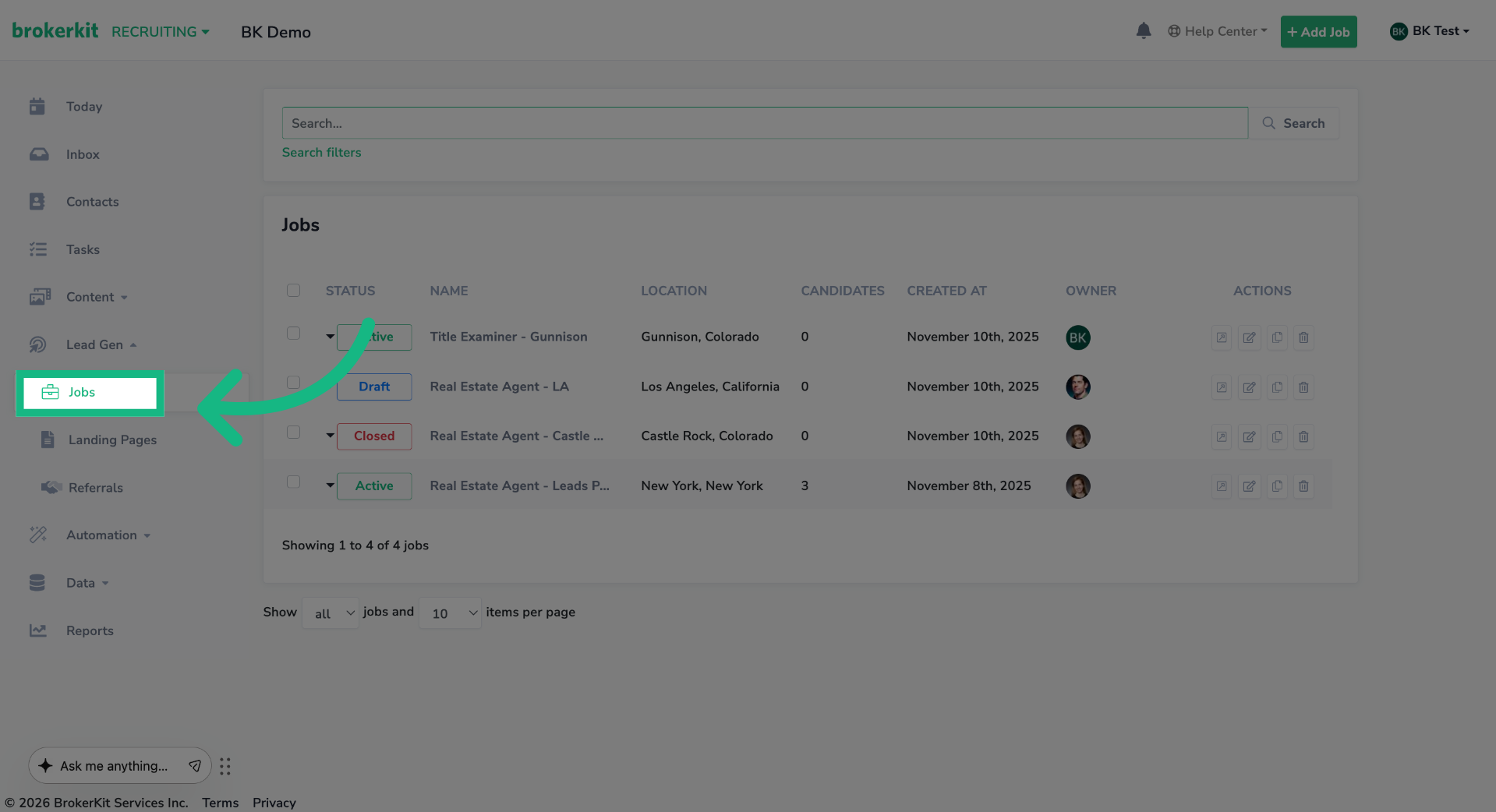
On the left menu, click Jobs.
10. Job Form
If you don't have any jobs, start by following the tutorial in the upper-right corner to create one.
However, if you have an existing job, please continue this video
How to create jobs?
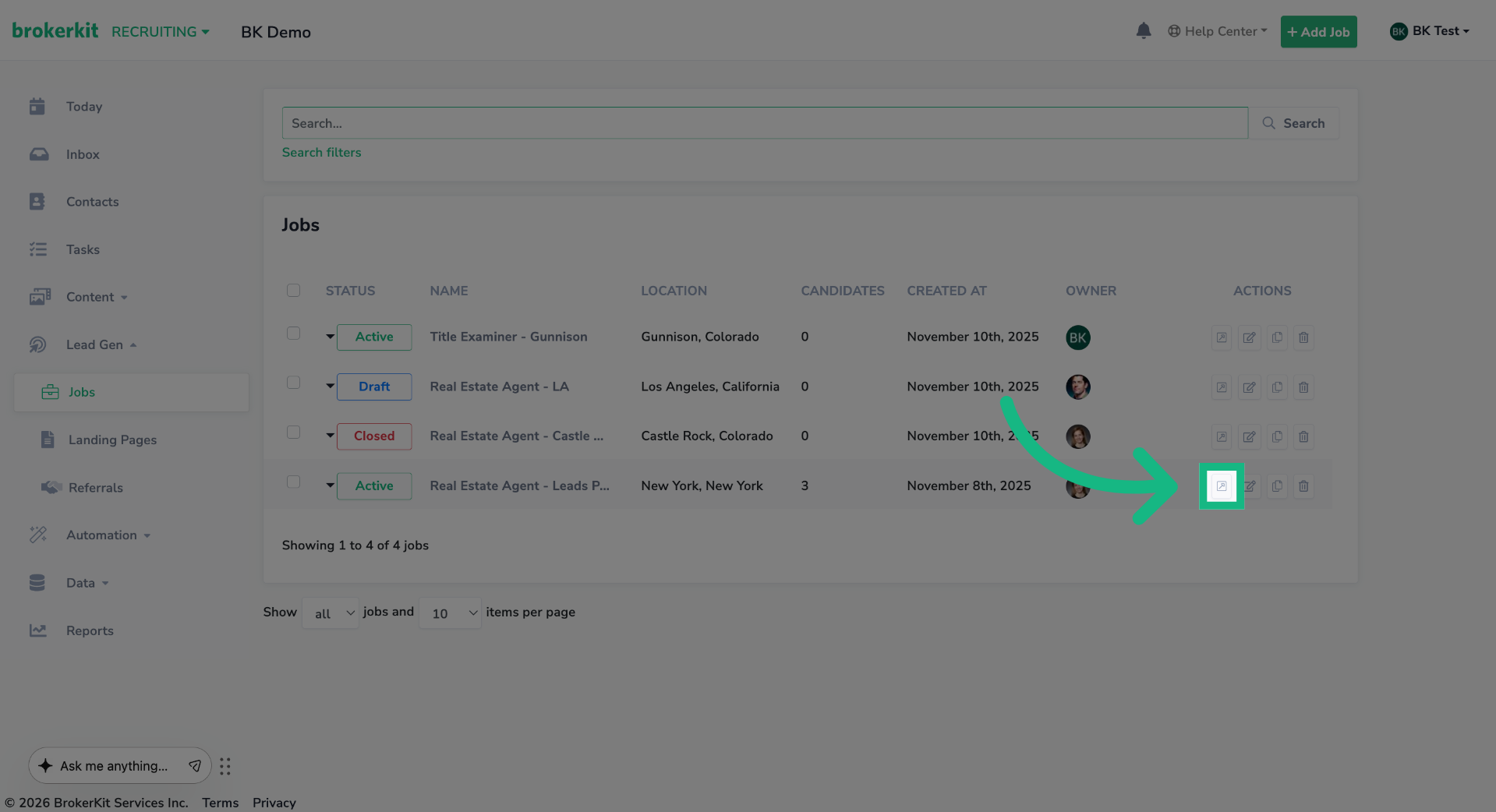
11. Access Job Listings
Click the edit button of the job you want to use.
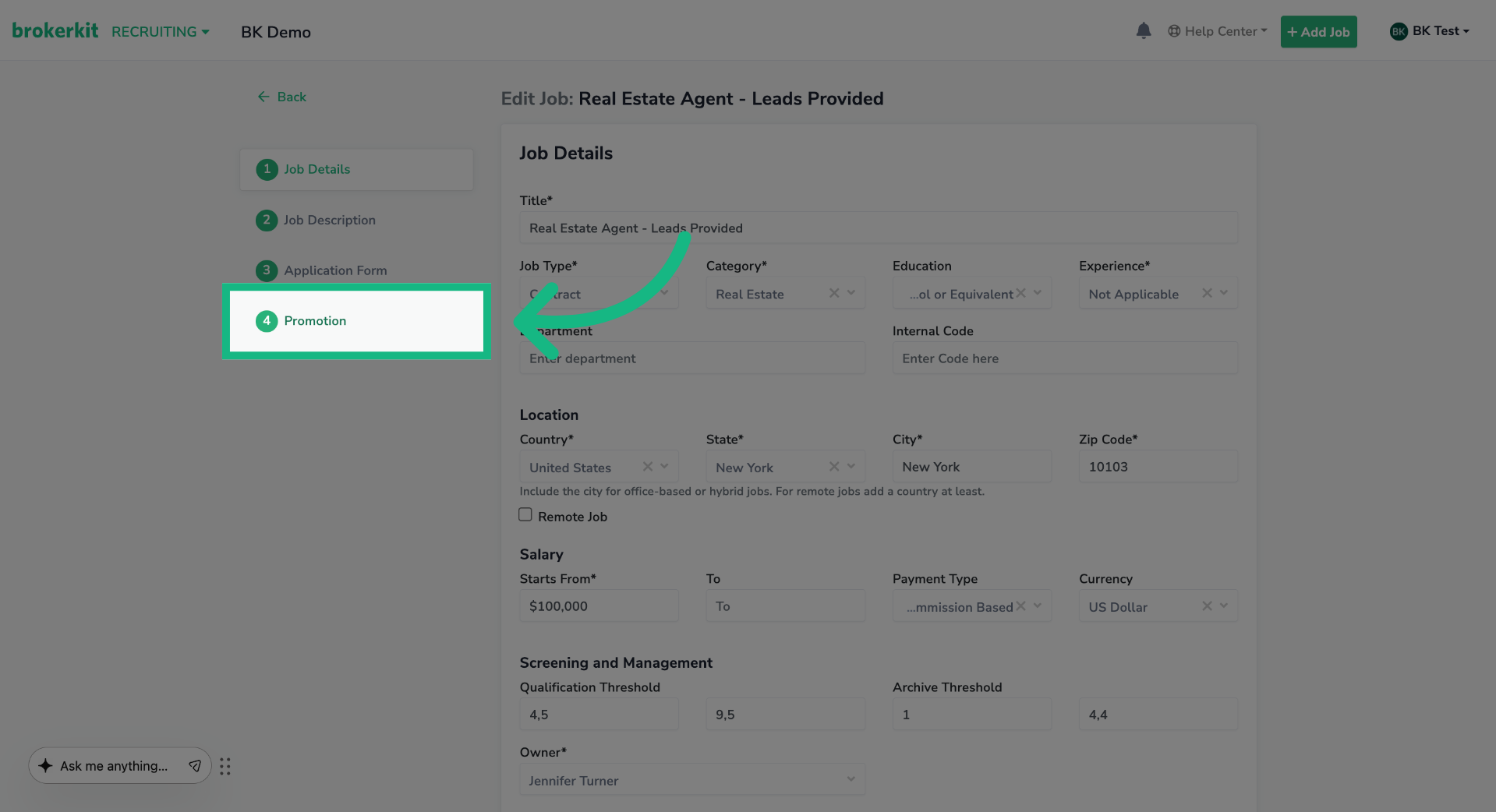
12. Select Promotion Campaign
On the left menu, click the Promotion option.
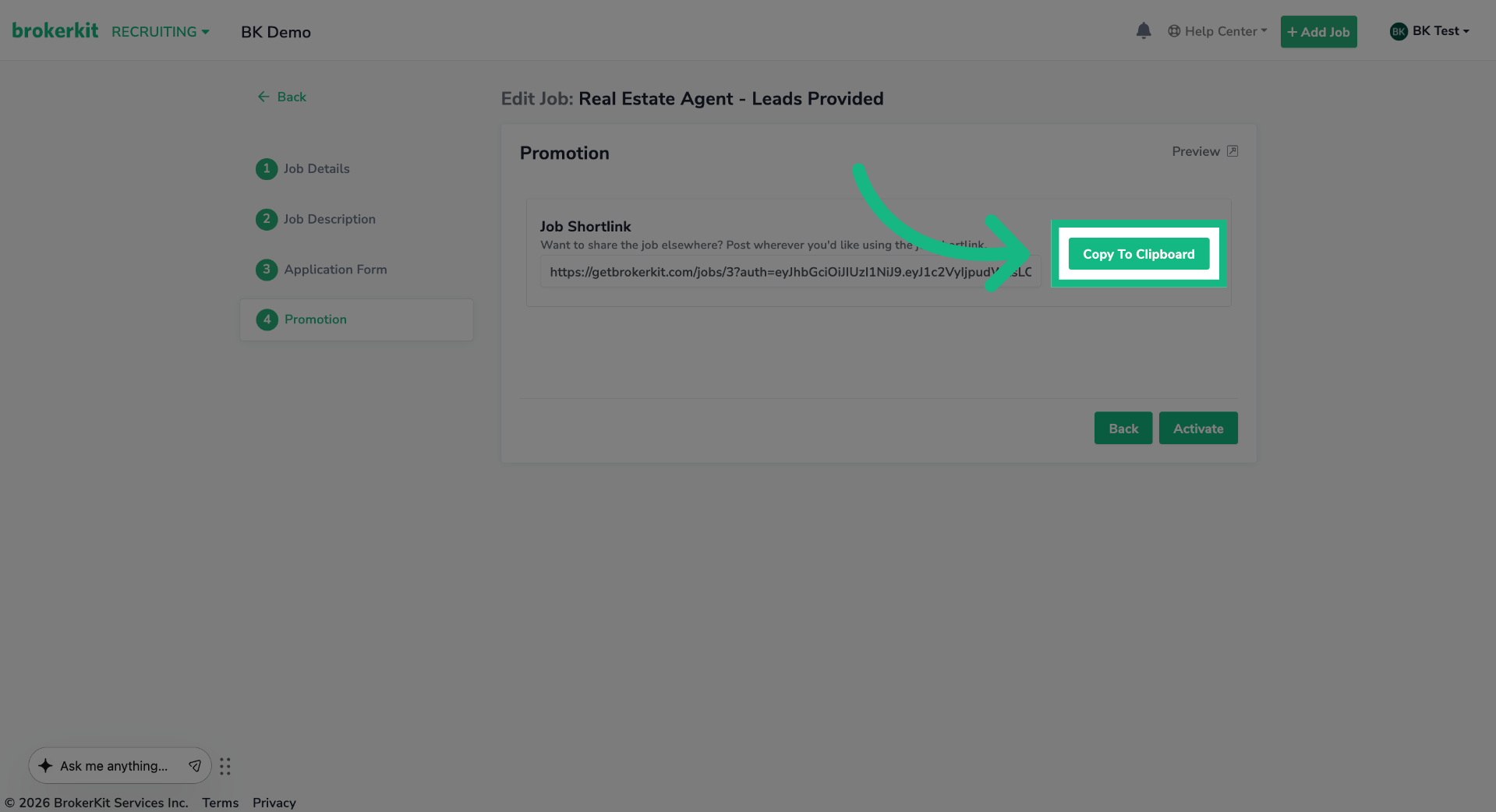
13. Copy Promotion Link
Click Copy To Clipboard to copy the promotion link to use on LinkedIn.
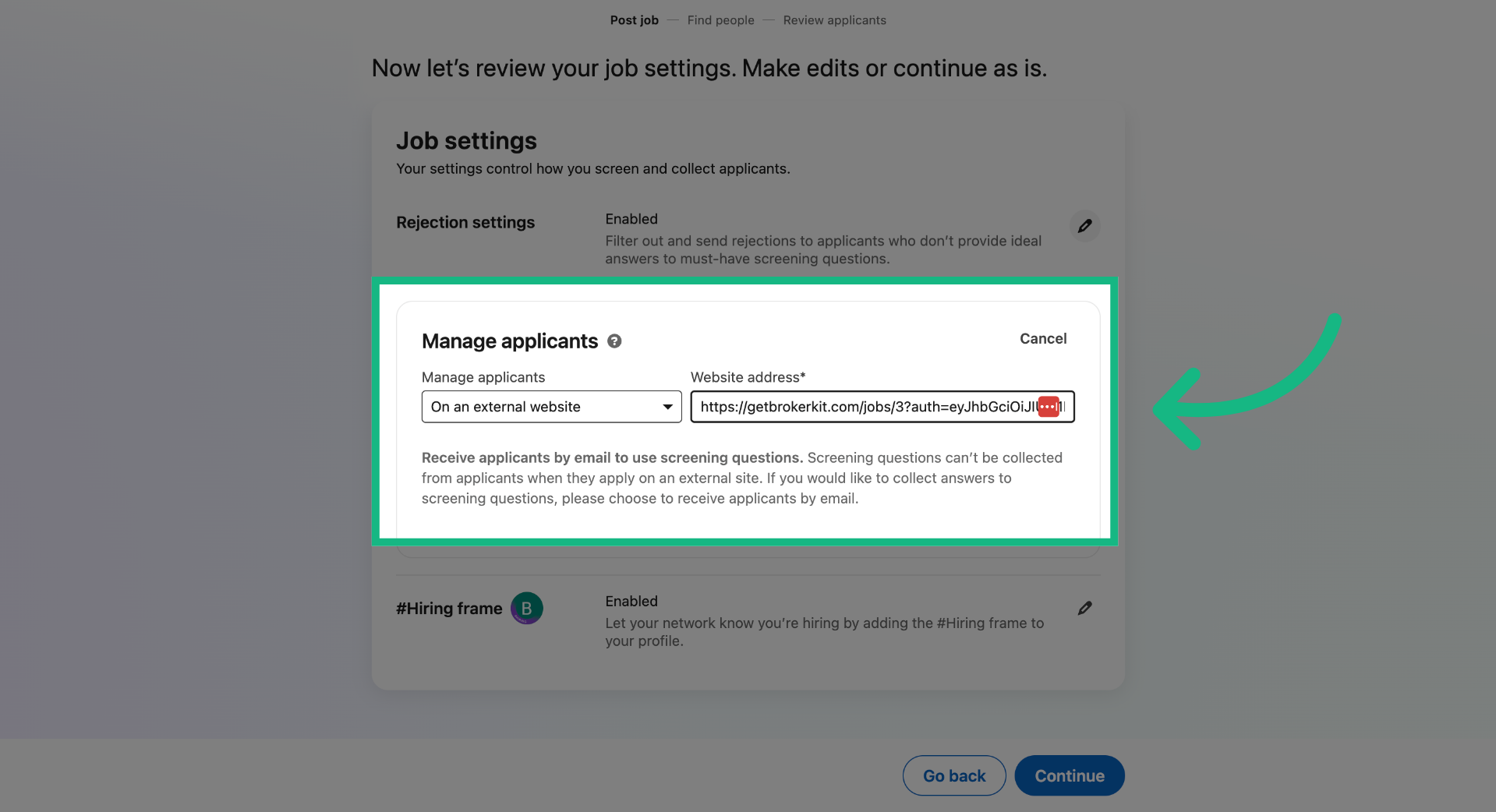
14. Paste the link
Return to the linkedin page and paste the promotion link.
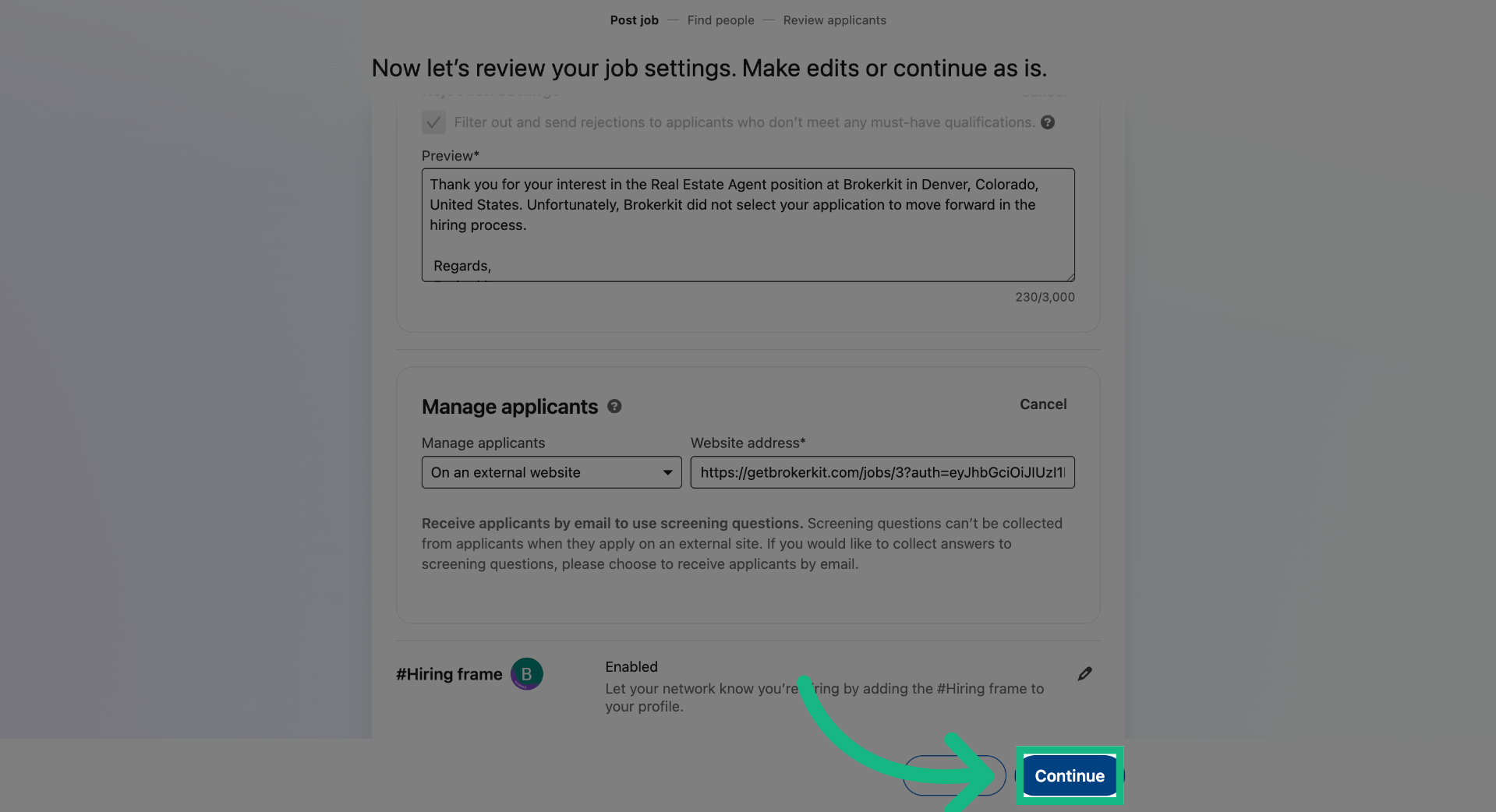
15. Continue Posting Process
Click Continue to move forward in the job posting workflow.
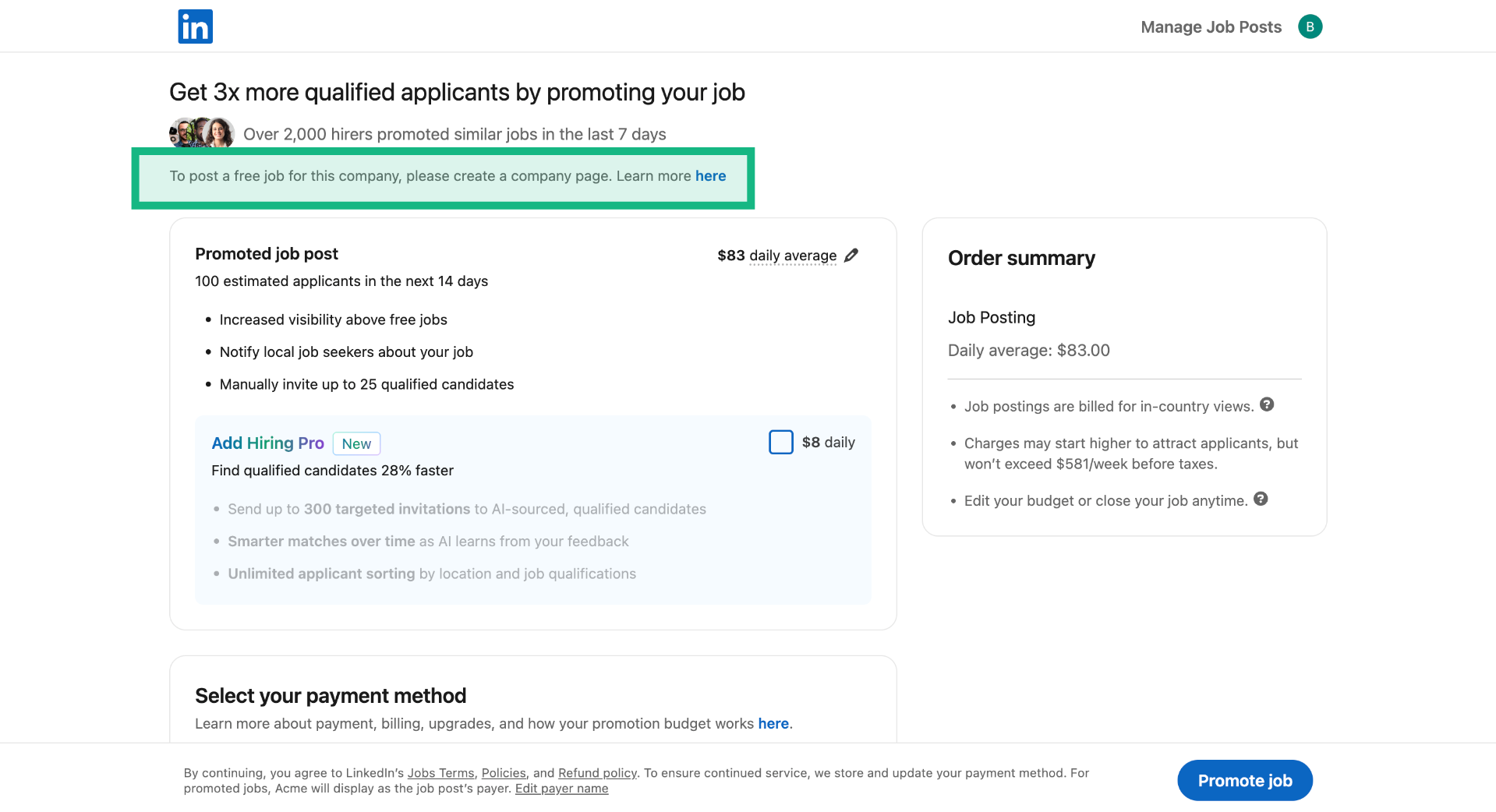
16. Choose Promotion Campaign
Choose a budget to promote the job, or post it organically. Remember, to post a job for free, you must first create a company page.
That concludes this tutorial. If you have any questions, please reach out to our support team at support@brokerkit.com.